

















































































































































Product Description
- High-concerned chemical: None
- Warranty: 12 Months
- Preset Station: Yes
- Tuner Type: Electricial Tuner
- Built-in DVD Player: No
- Built-in CD player: No
- Chipset: T1633
- Processor Type: Allwinner
- Is touch screen: Yes
- Built-in Screen: Yes
- Category: In-Dash
- TF/Micro SD Slot: 0
- Din: Double Din
- RAM: 1g
- Interface: ISO
- Operating System: Linux
- Out Power: 4*45W
- Voltage: 12 V
- Output Type: Colored
- Max External Memory: 32G
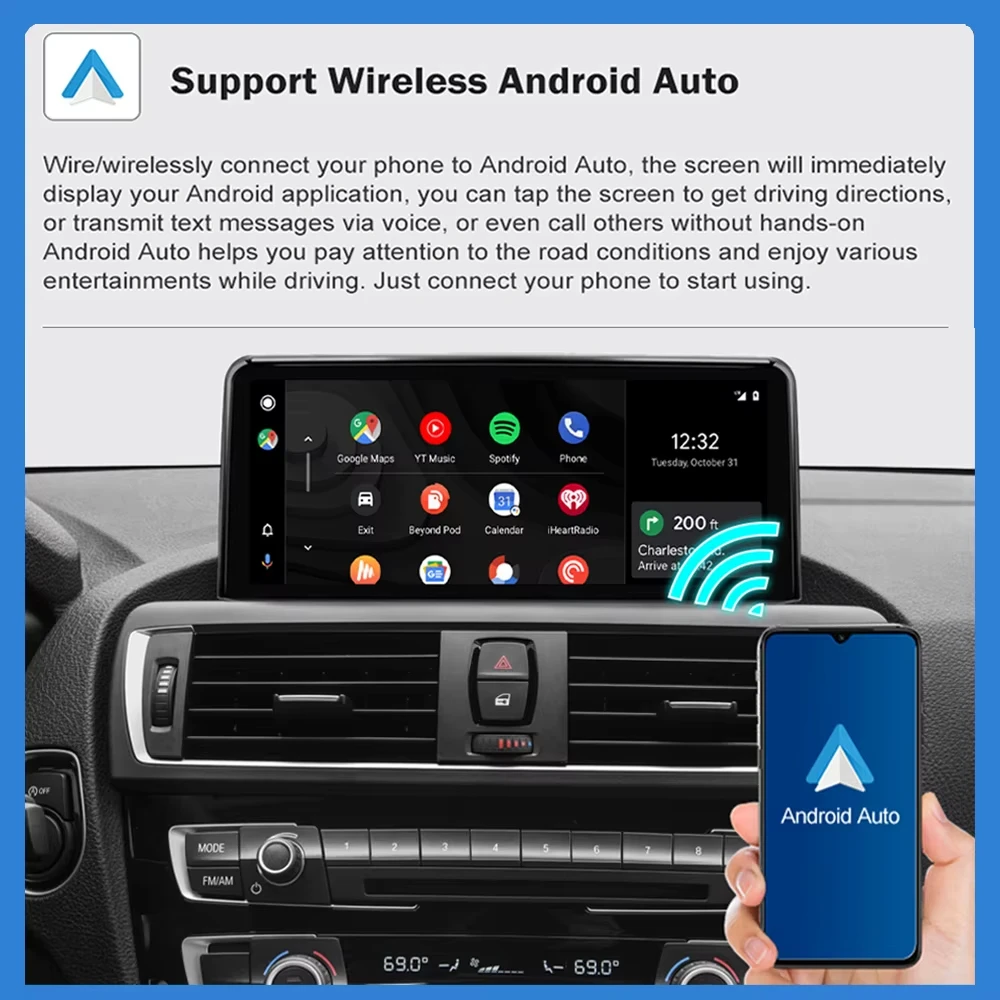
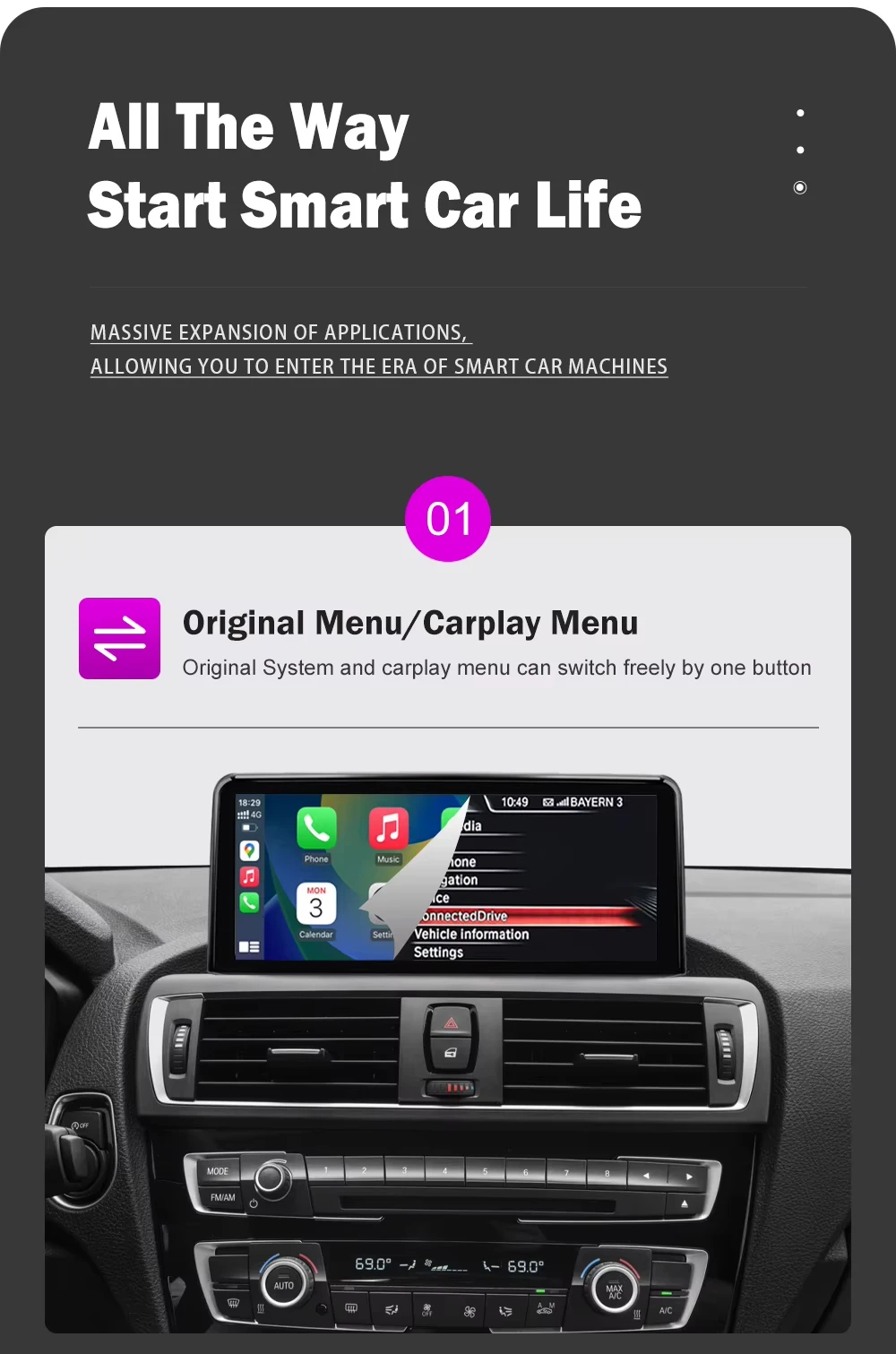
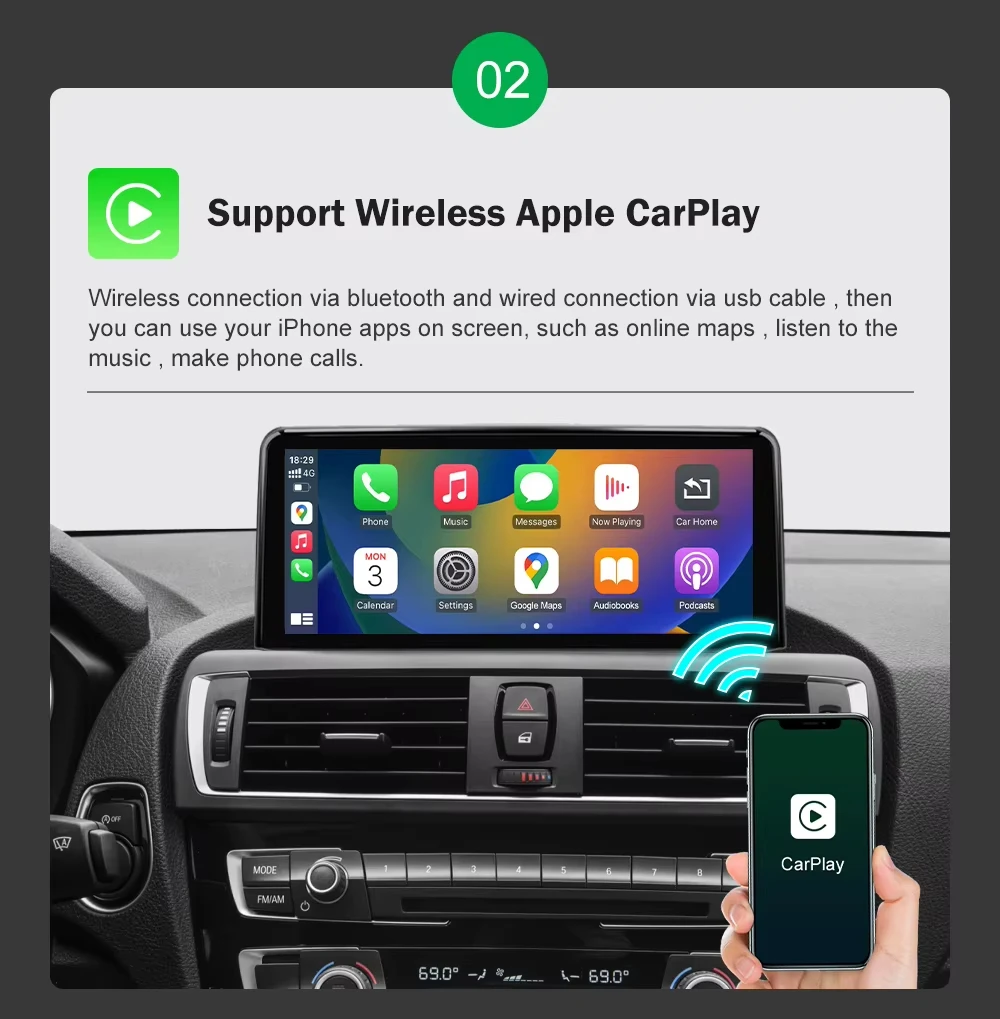
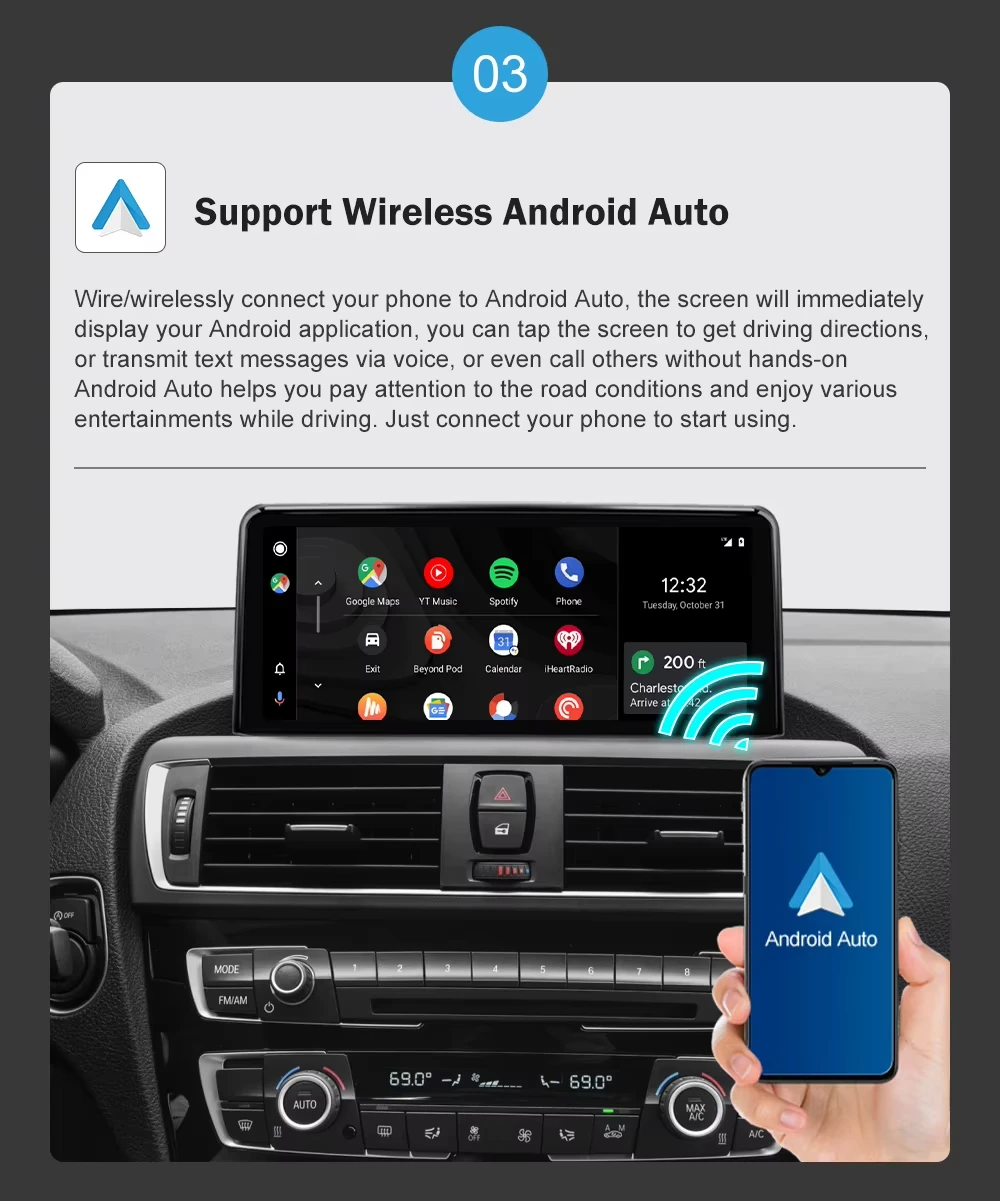
- Special Features: Built-In Speaker/Microphone,wifi function,Support steering wheel control,Built-in GPS,Mobile Phone,MP3 players,dsp,CarPlay,android auto,Reversing Input
- Digital Media Format: Mp3,MP4,WMA,JPEG
- OSD Language: Chinese (Simplified),Chinese (Traditional),Arabic,Polish,German,Russian,French,Korean,Dutch,Portuguese,Japanese,THAI,Spanish,Italian,English
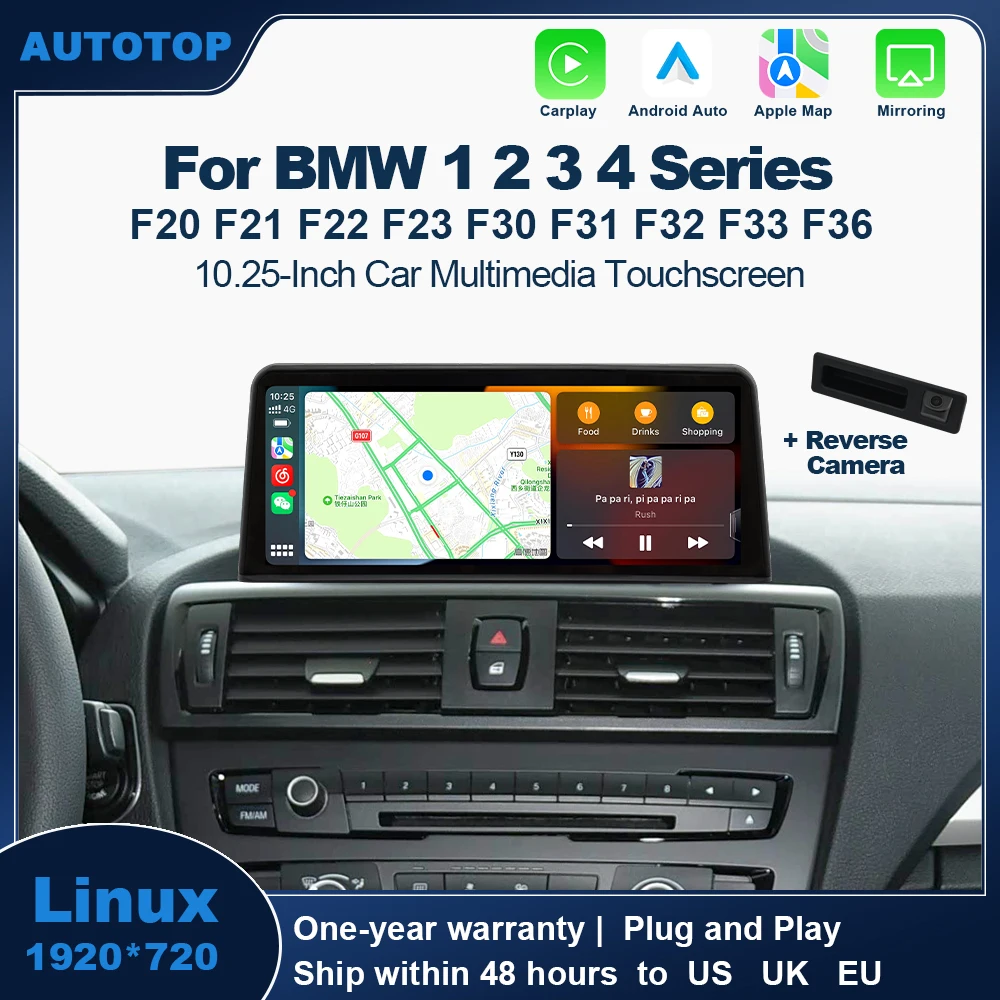
- Resolution: 1920*720
- Display Size: 10.25
- Brand Name: AUTOTOP
- Origin: Mainland China
- For Vehicle Brands/Model: BMW
- Accessory Type: Power cable,USB Cable,AUX cable
- Certification: CE,FCC,weee
- Shipping Channels: We have multiple shipping warehouses around the world, providing local delivery services with the fastest delivery time of 24 hours.
- Product Warranty Period: One year (excluding damage caused by human error)
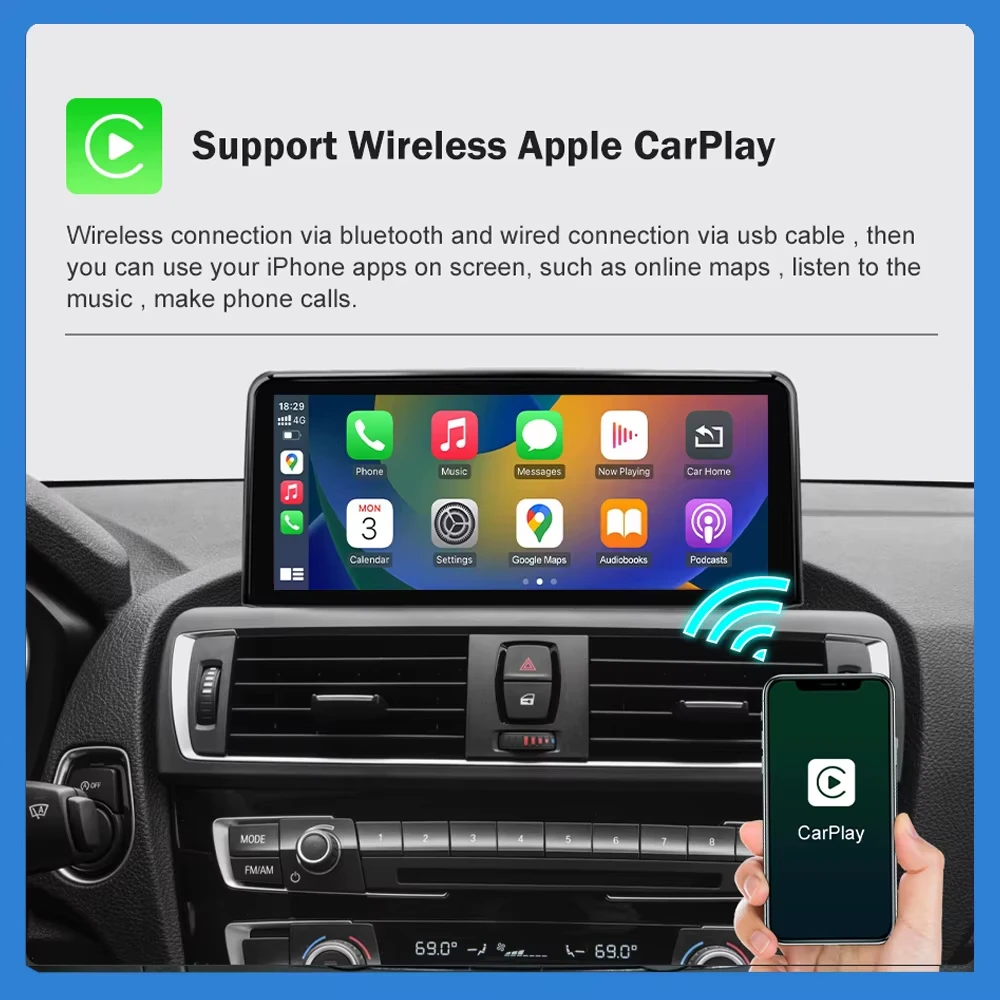
- Upgrade the New Function: Wireless Apple Carplay and Android Auto,Airplay Android mirroring
- System advantages: There are no unnecessary or complicated applications, and booting up can be completed in 5 seconds.
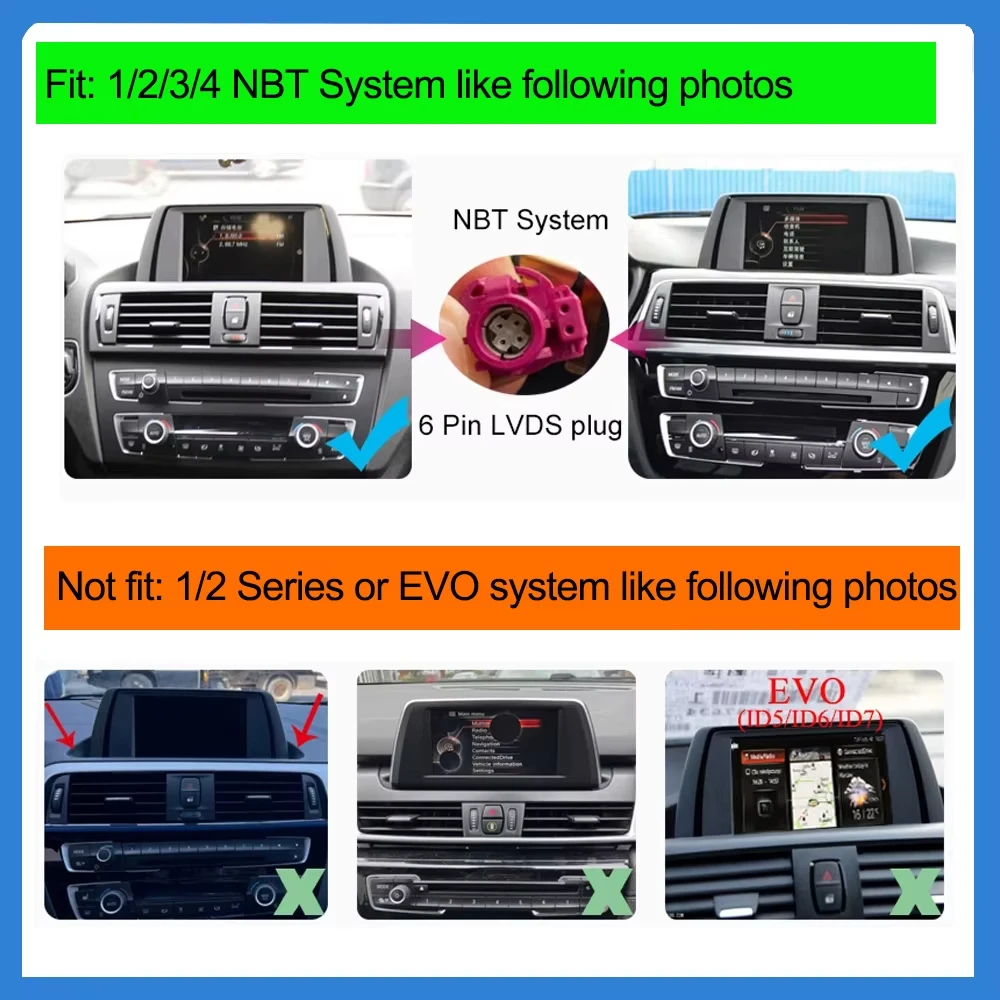
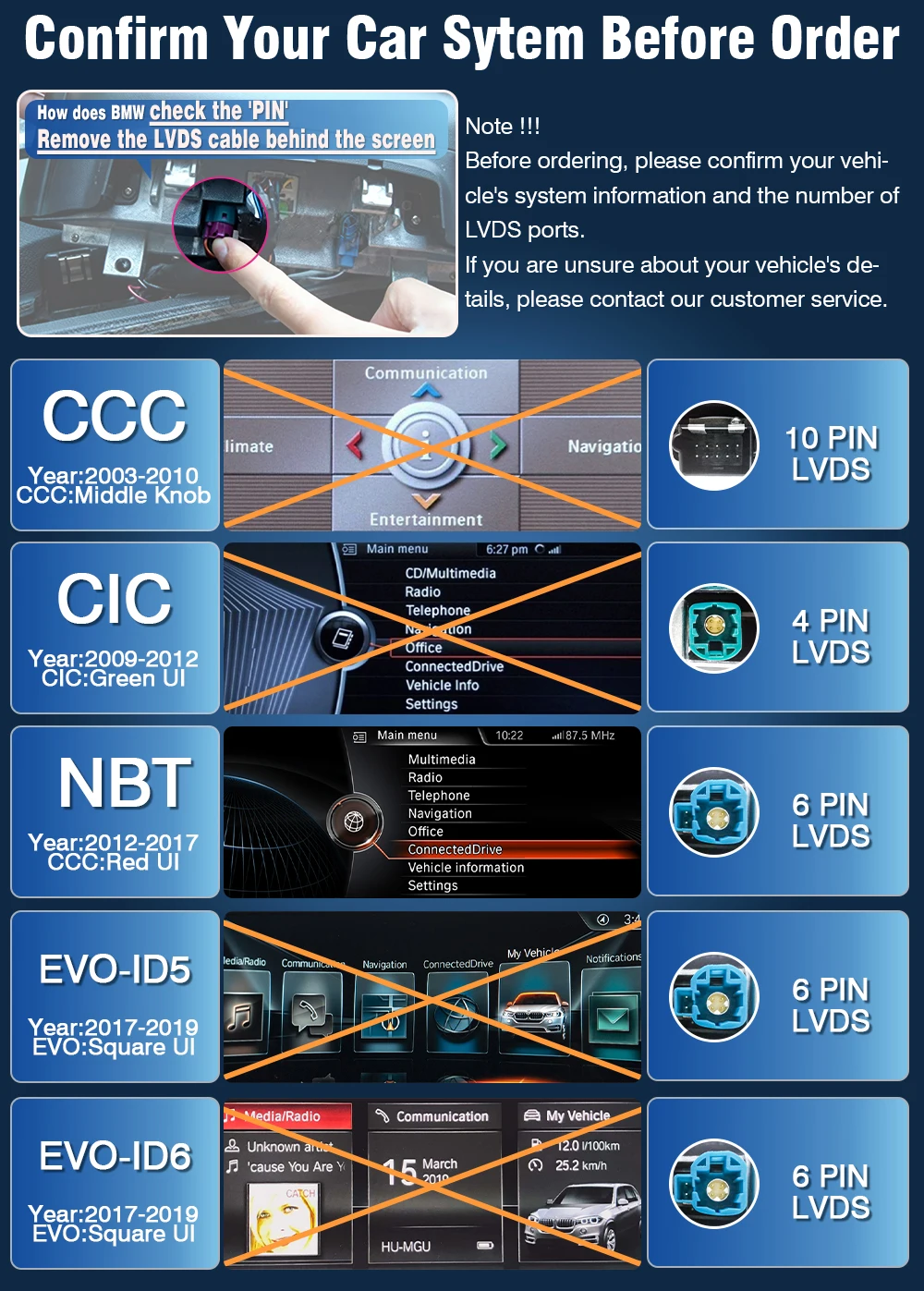
- Doesn't support the system menu: CCC,CIC,EVO
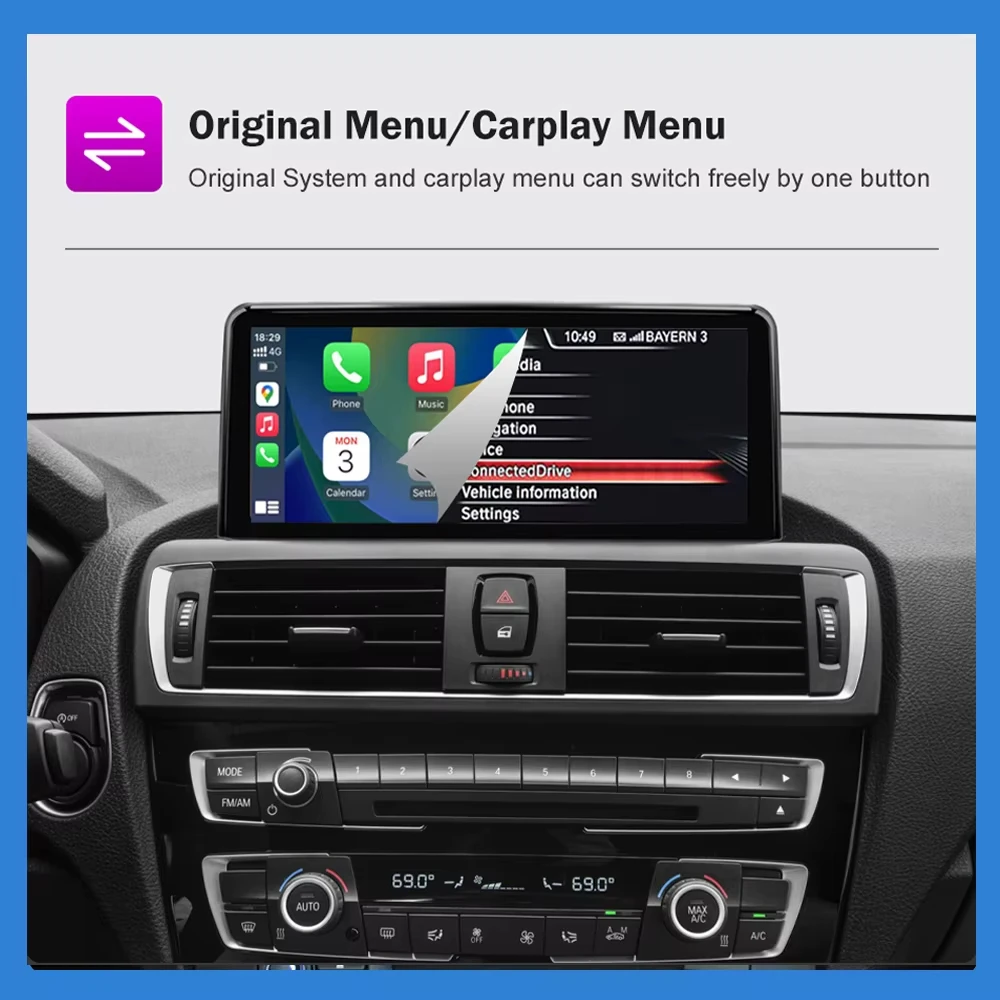
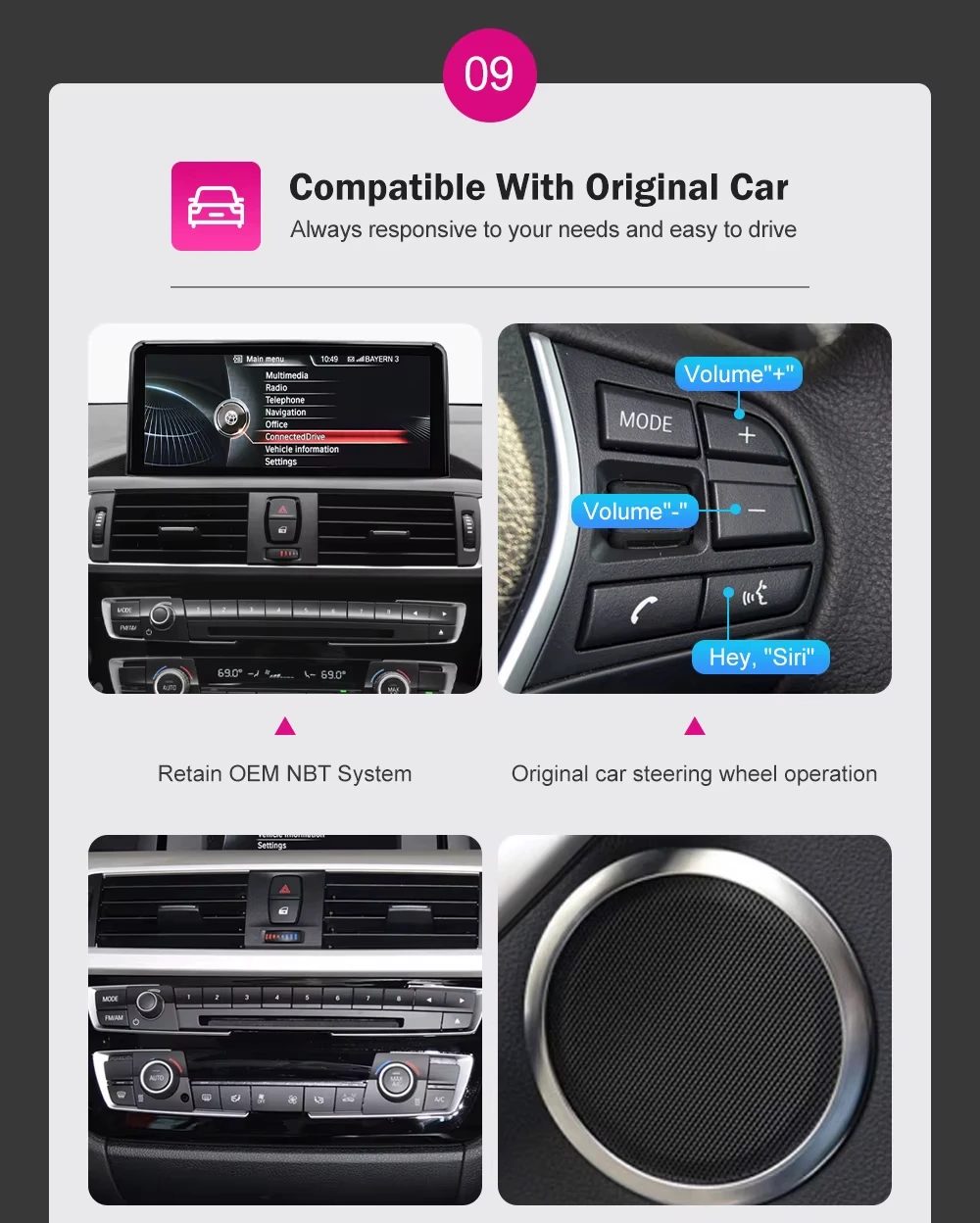
- Support the original system menu: NBT
Important Note: Standard version is Linux system and does not support YouTube. The factory password is 8866.
Great news – for a better experience!
For only €20 more, you can upgrade to the version with built-in YouTube support (factory password: 1520). Enjoy seamless video streaming directly on your car display – no extra devices needed.
We highly recommend this small investment for a much more
enjoyable in-car experience.
if you need it, please contact us!!!
for BMW 1 2 3 4 series NBT system(LVDS is 6pin ) with built-in YouTube version from this purchasing link:https://fr.aliexpress.com/item/1005010114271142.html?
Warming: The car multimedia player touchscreen does not support BMW EVO system !!!
If your car is BMW 2 series F20,you purchased BMW 3 series F30 car multimedia player touchscreen, so it is not compatible with your vehicle models.
Note:
A: 1 2 Series models distinguish between left-hand drive and right-hand drive configurations, and support both CIC( is 6 pin LVDS) and NBT systems.
If your 1 2 Series models is EVO(ID5 ID6) system, this radio do not support your car models.
For the European and US regions, we ship the left-hand drive version by default.
For the UK region, we ship the right-hand drive version by default.
B: 3 4 Series models do not distinguish between left-hand drive and right-hand drive configurations; however, they support only the NBT system and do not support CIC or EVO.
Compatible Models:
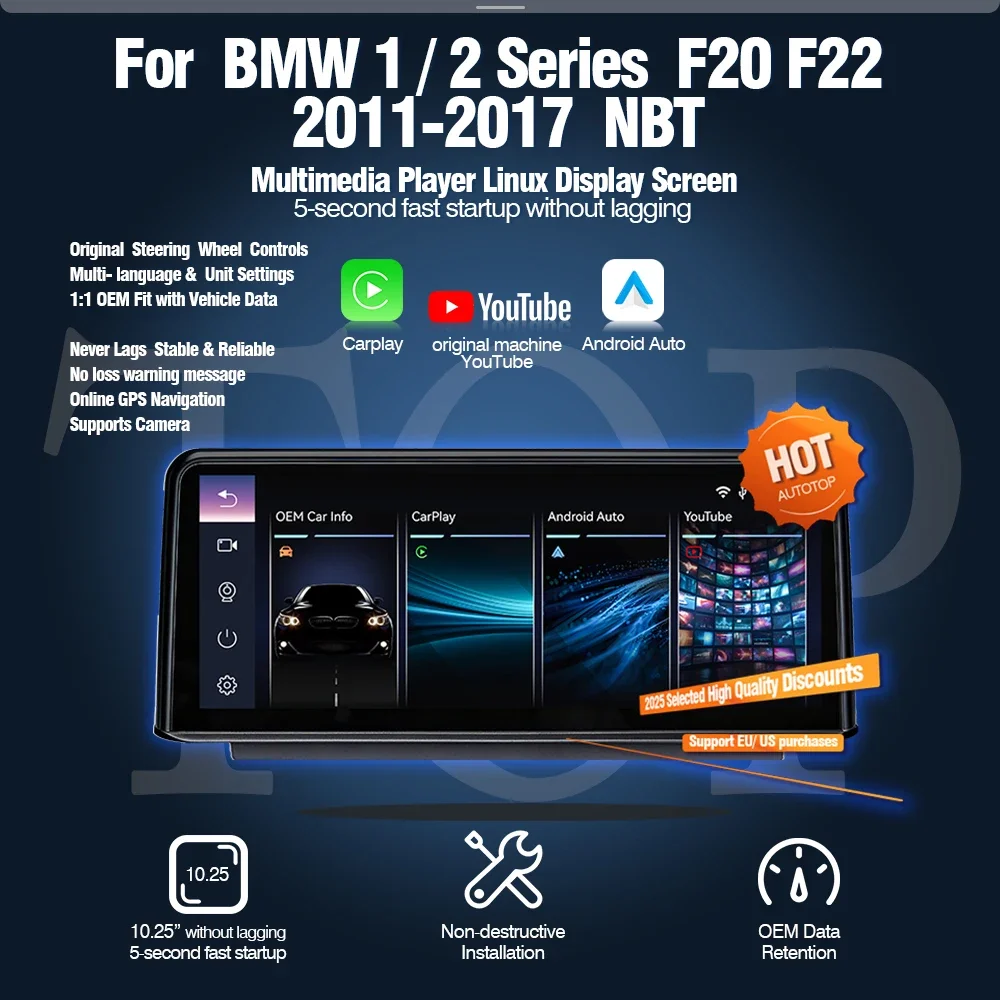
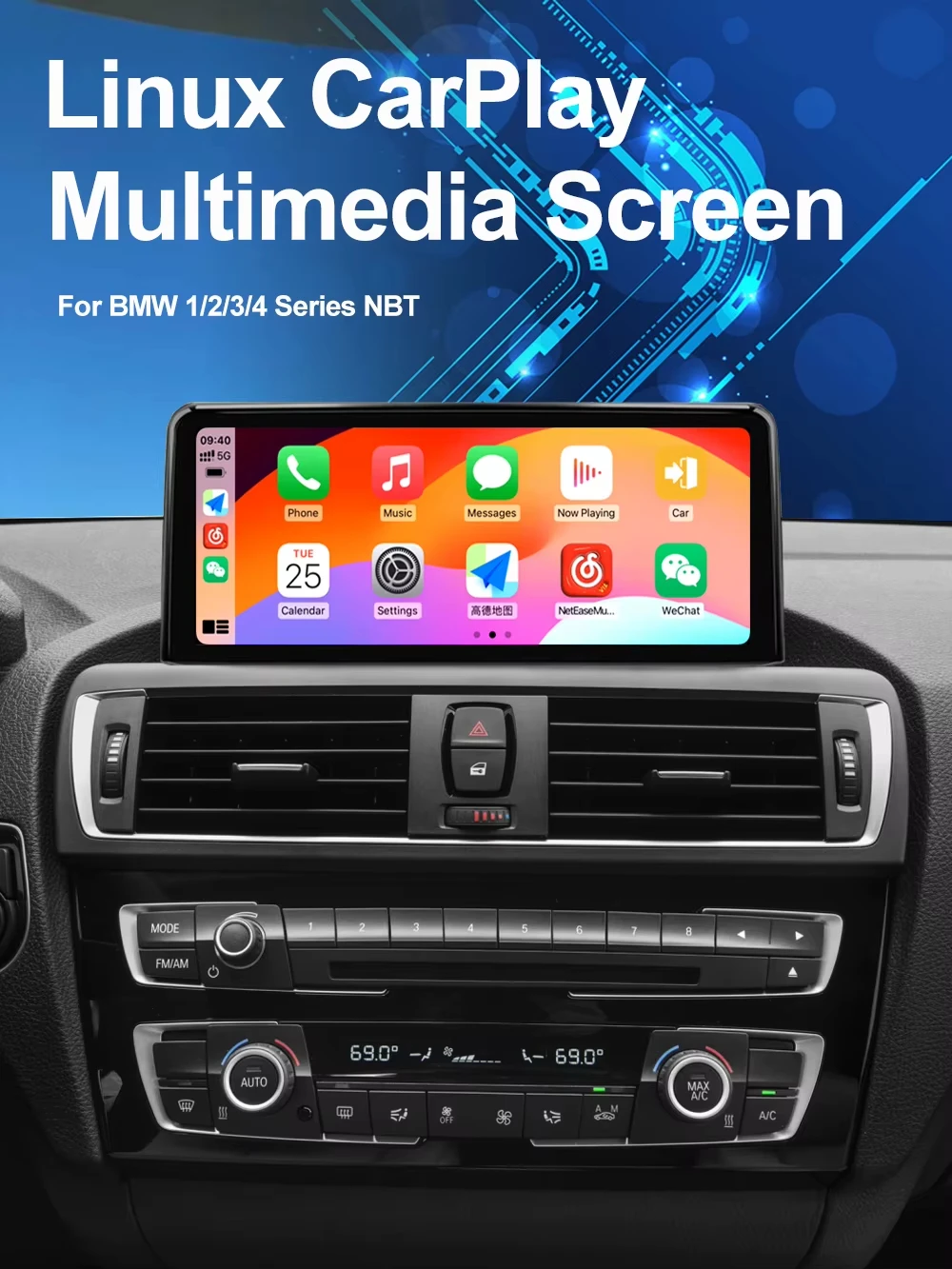
for BMW 1 2 3 4 series F20 F21 F22 F23, LVDS is 6pin, NBT system, 2012-2016.
Most 2017 models feature the EVO system; this Radio cannot be installed on EVO-equipped vehicles.
Specifications:
the factory password is 8866.
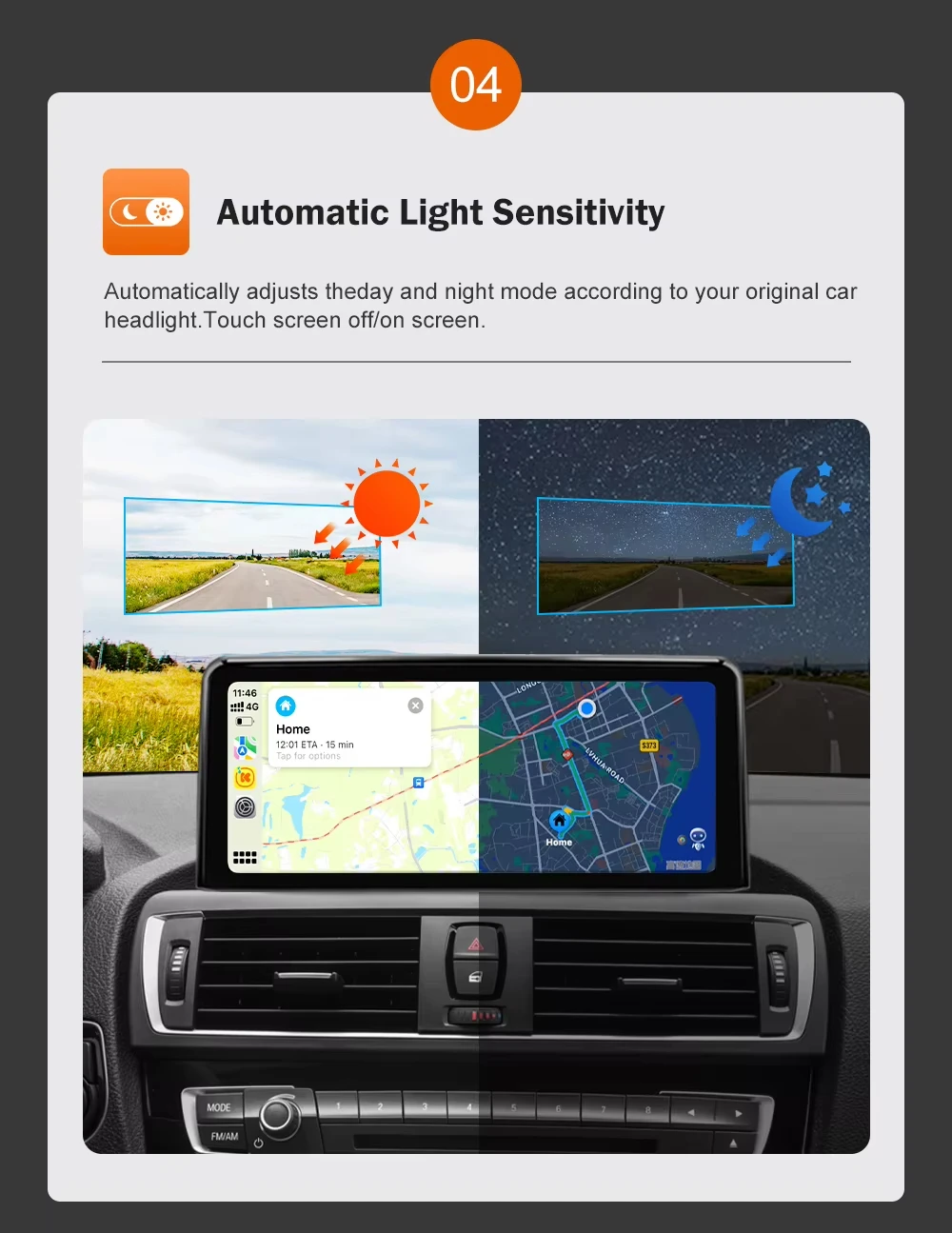
1. 10.25-inch IPS Touchscreen – High resolution, 1920*720P.
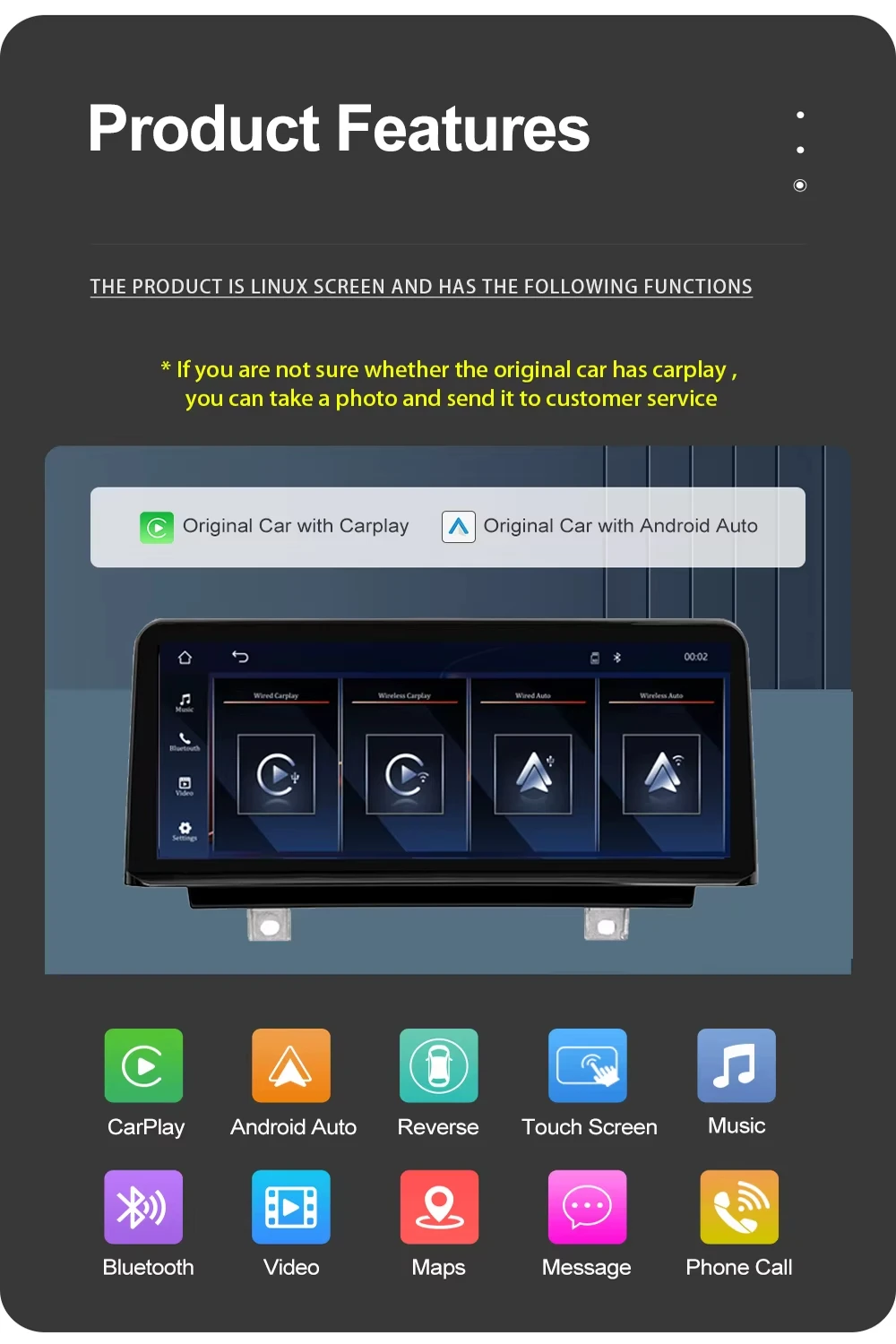
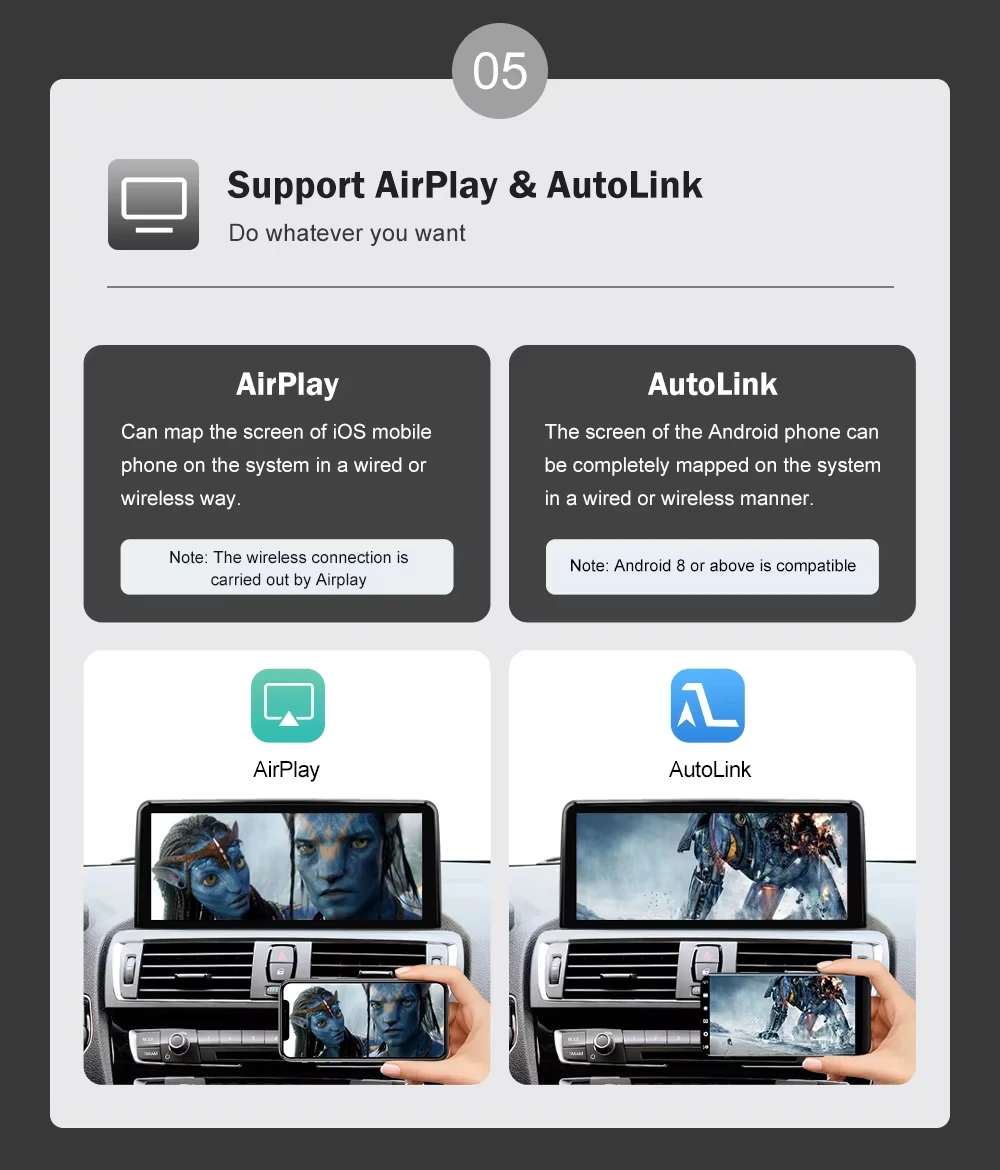
2. Wireless CarPlay & Android Auto, AirPlay & Android system mirror. For AirPlay, you must connect an AUX cable for audio.
3. Operating system: Linux system – faster and smoother connection than Android.
Linux system do not have google frame, so this screen do not have Google store to download the third-party applications.
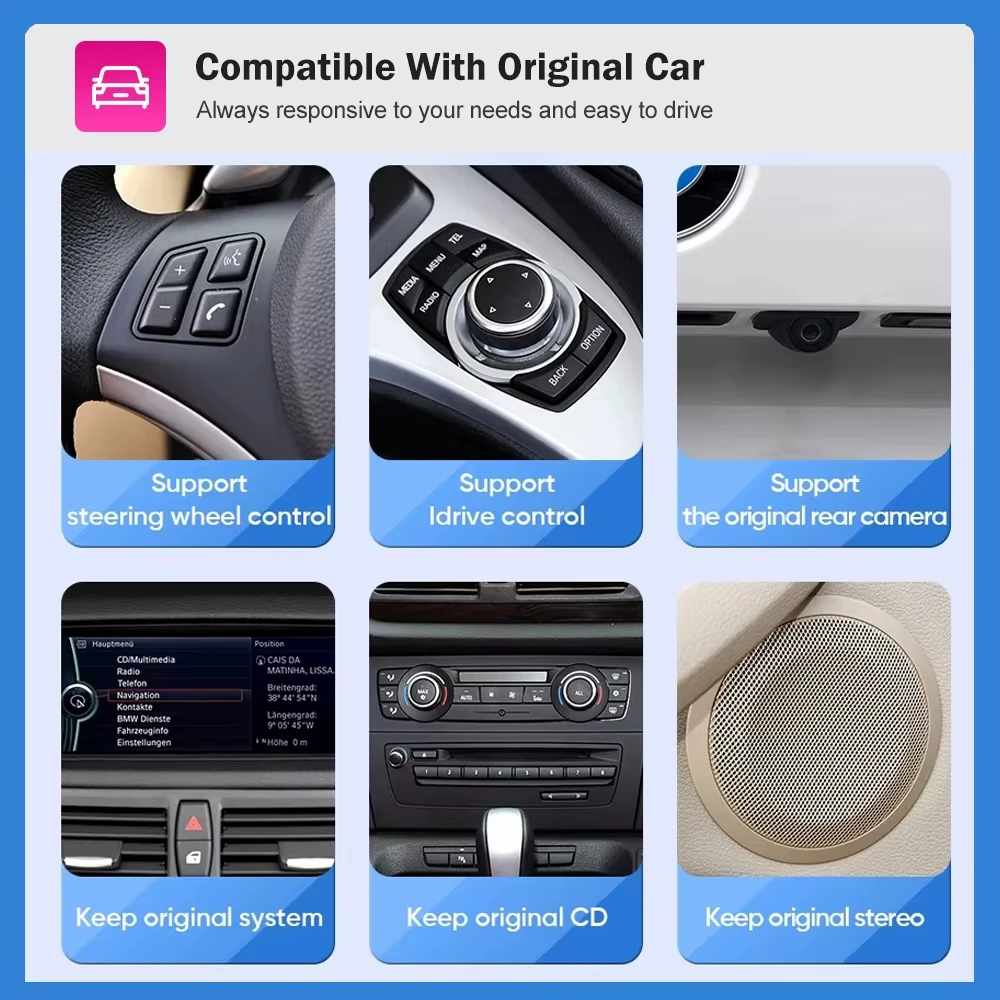
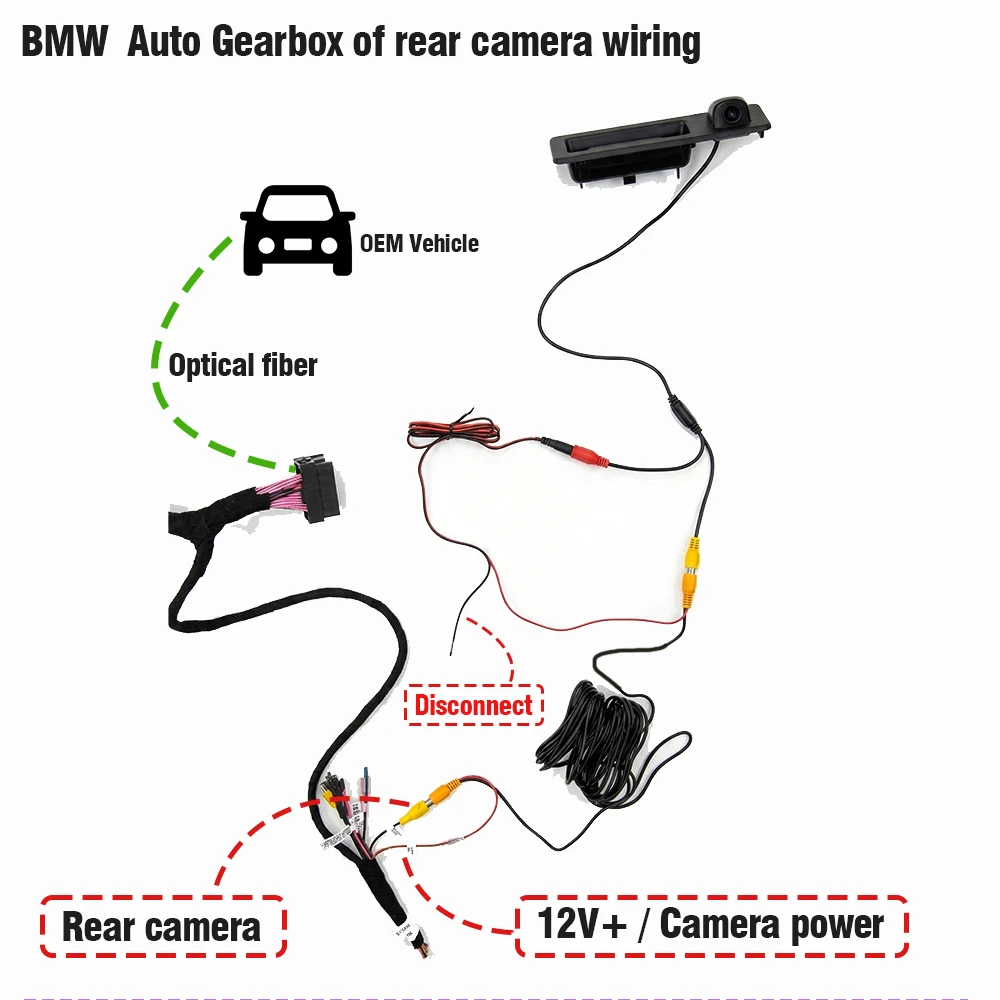
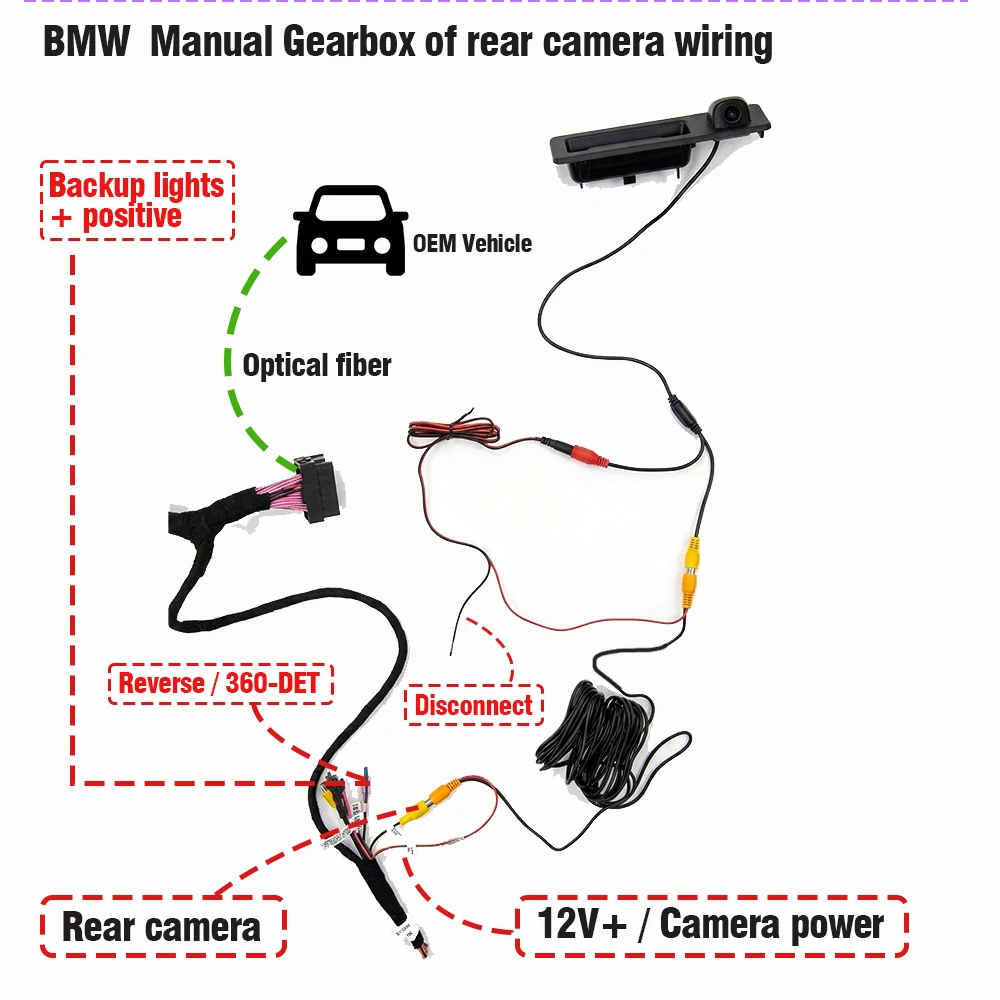
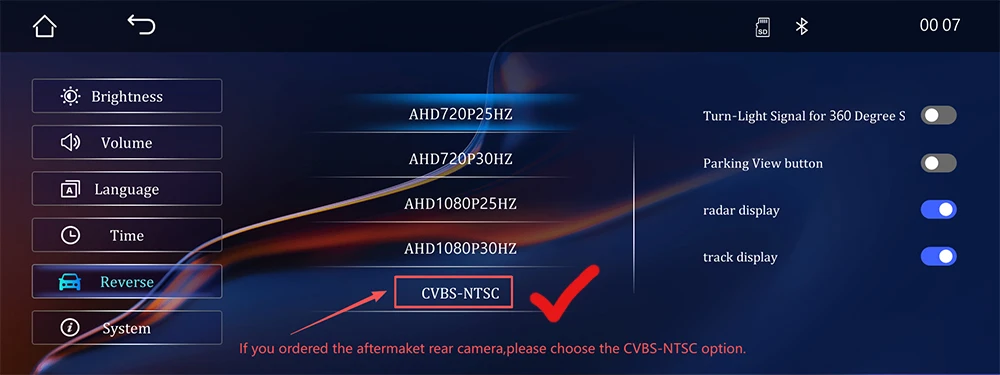
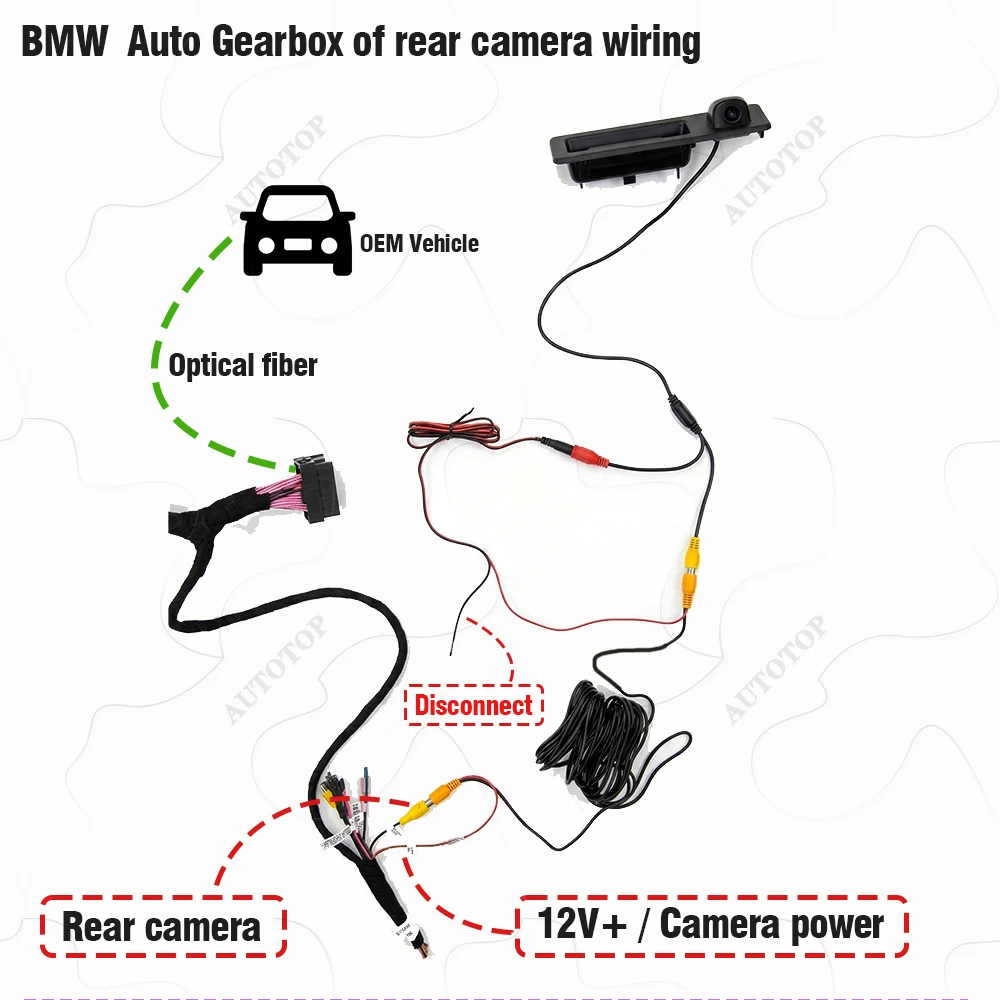
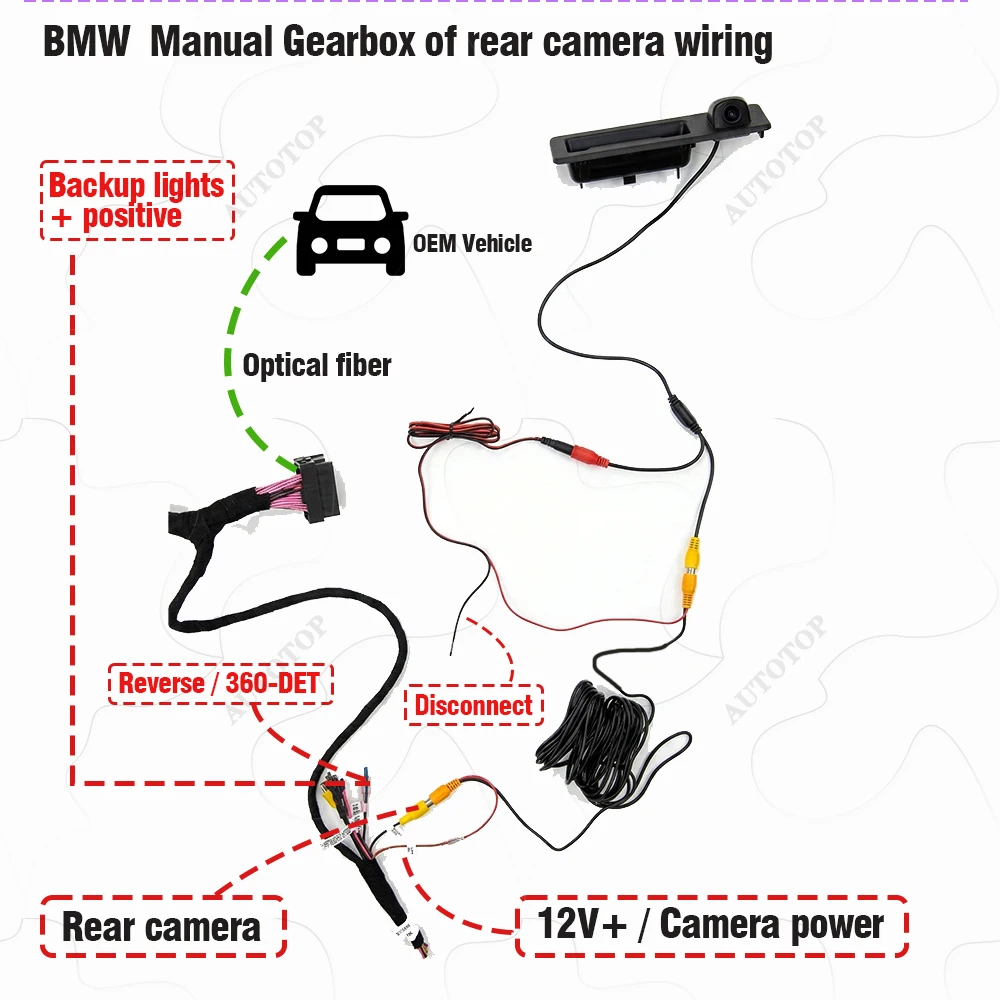
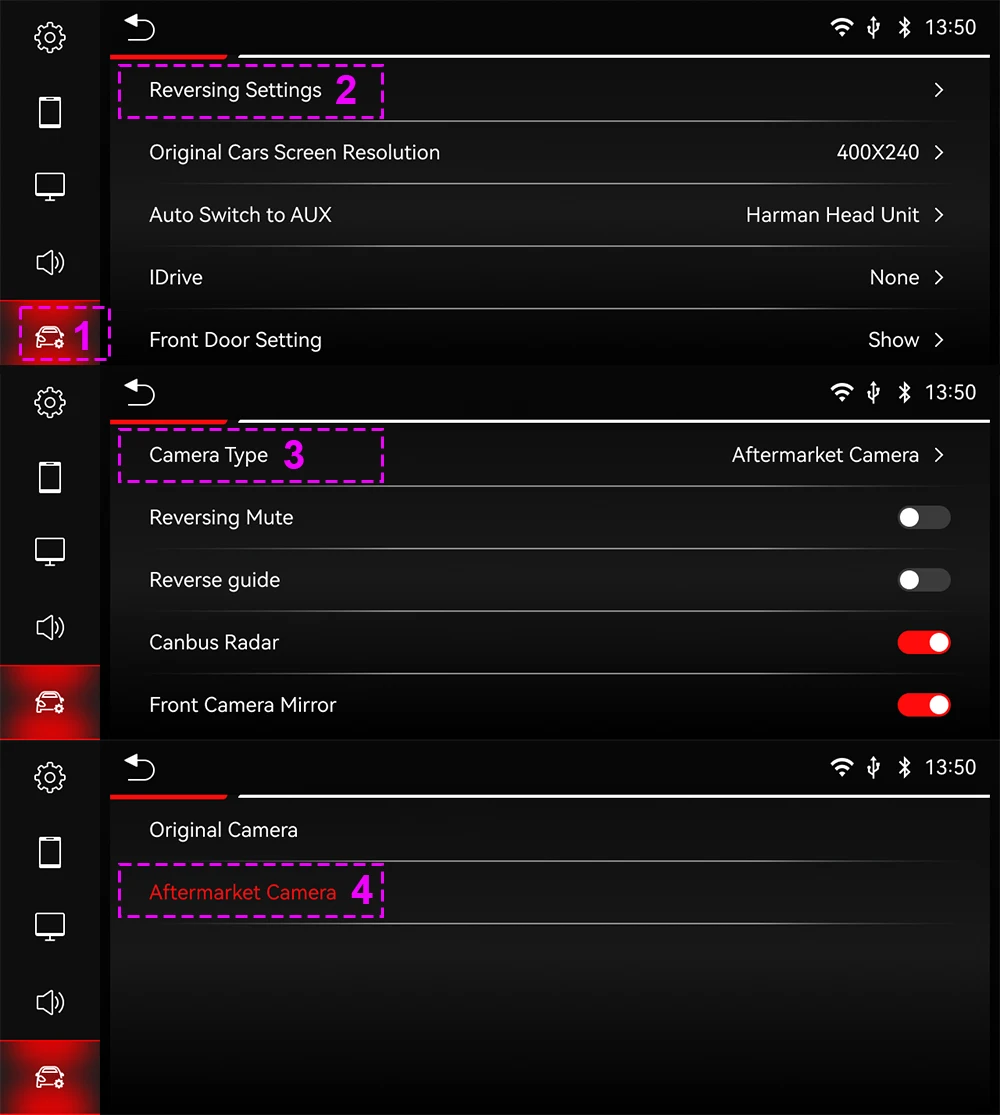
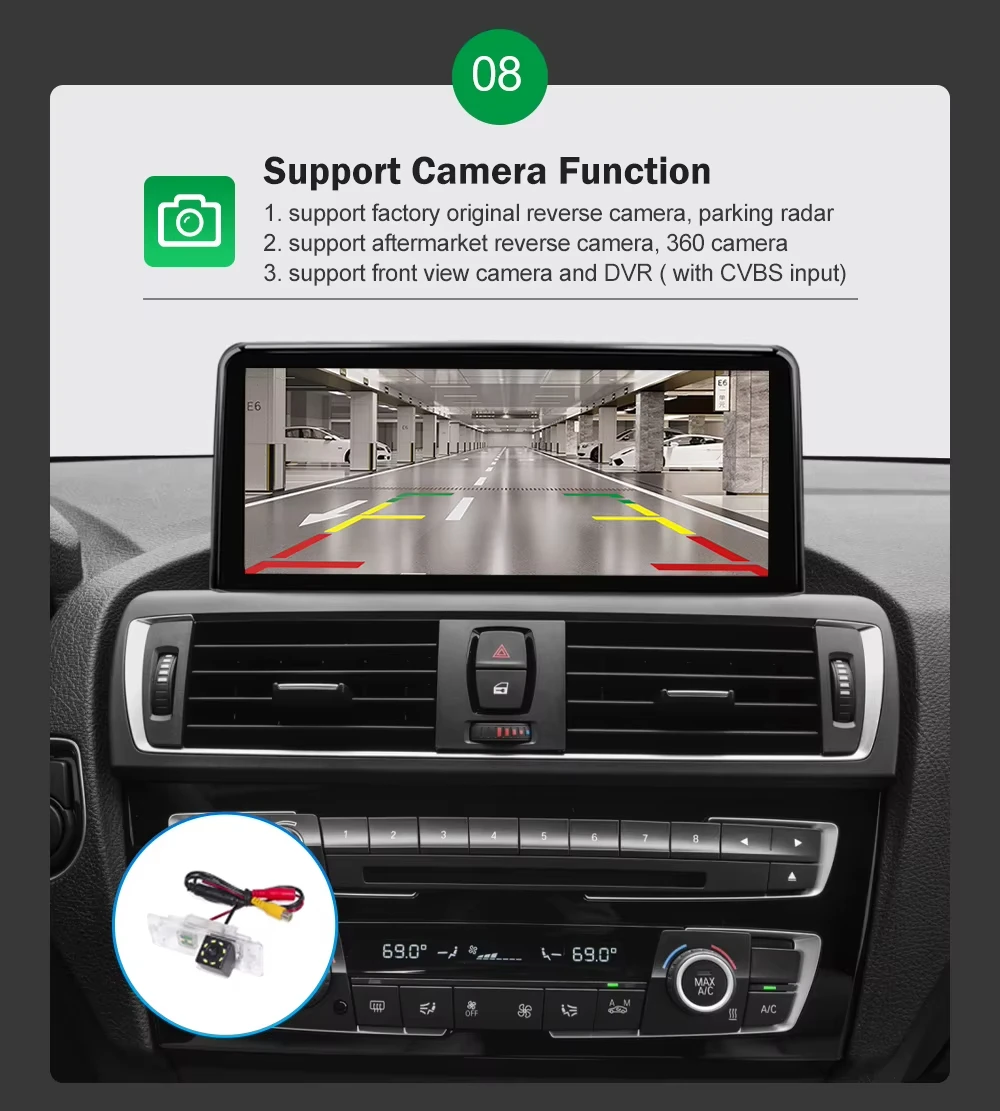
4. Supports factory camera & parking sensors – Enhanced safety and comfort.
If you purchase our 720*480P rear camera, your original parking sensors will still be usable.
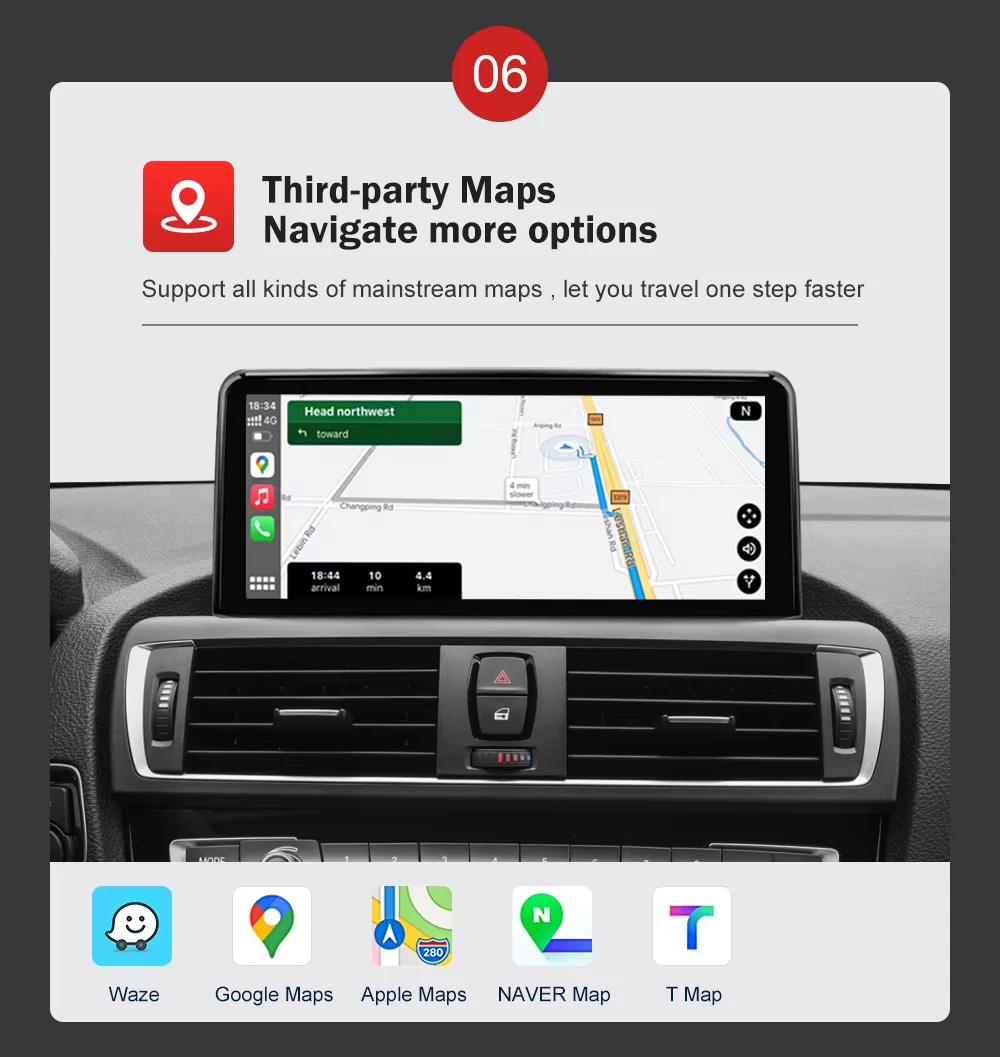
5. App access: Google Maps, Apple Maps, Waze, Spotify, YouTube Music, Apple Music.
6. Support the original Steering wheel controls compatibility – Intuitive navigation.
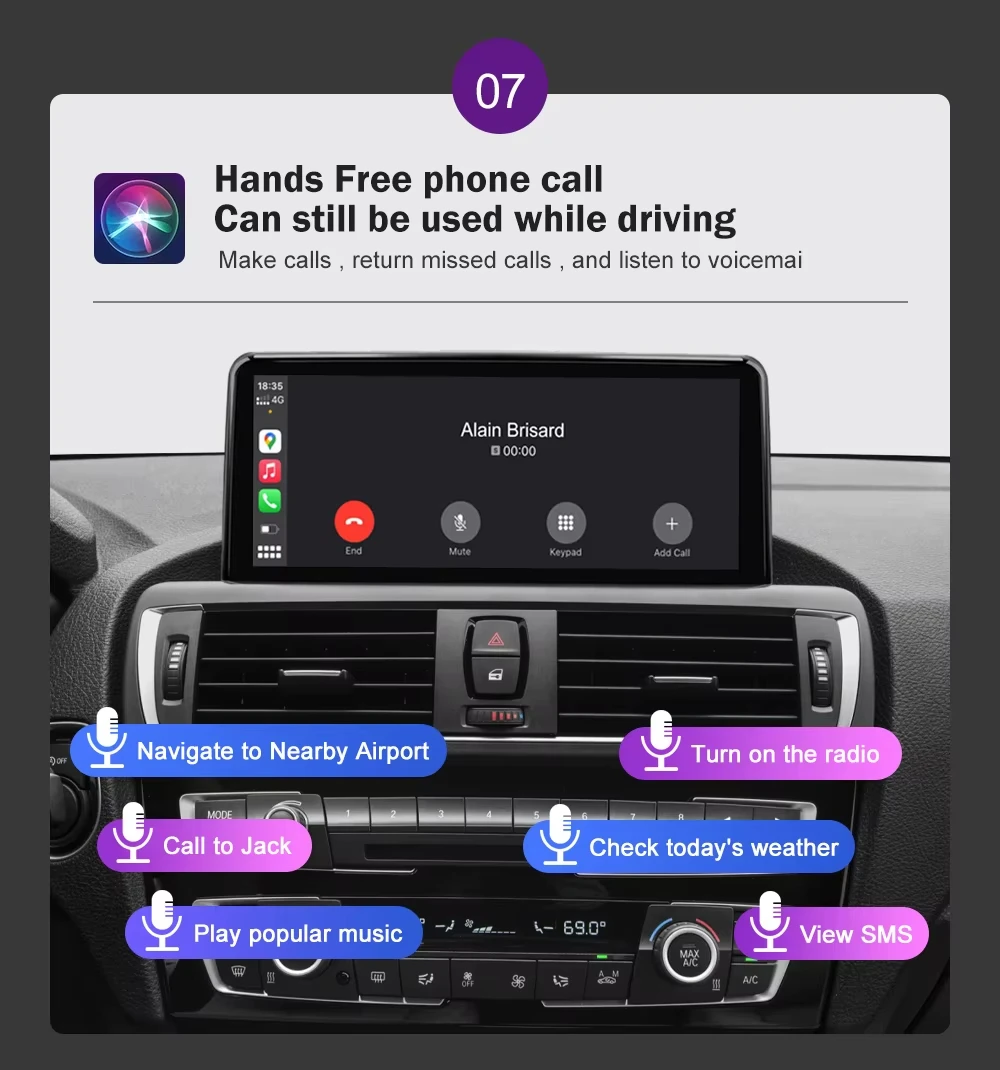
7. Voice Assistant: Hey, Siri & Google Assistant, allowing you to control everything simply by asking.
BMW Linux system Multimedia Screen Installation Guide
The installation process consists of three main steps:
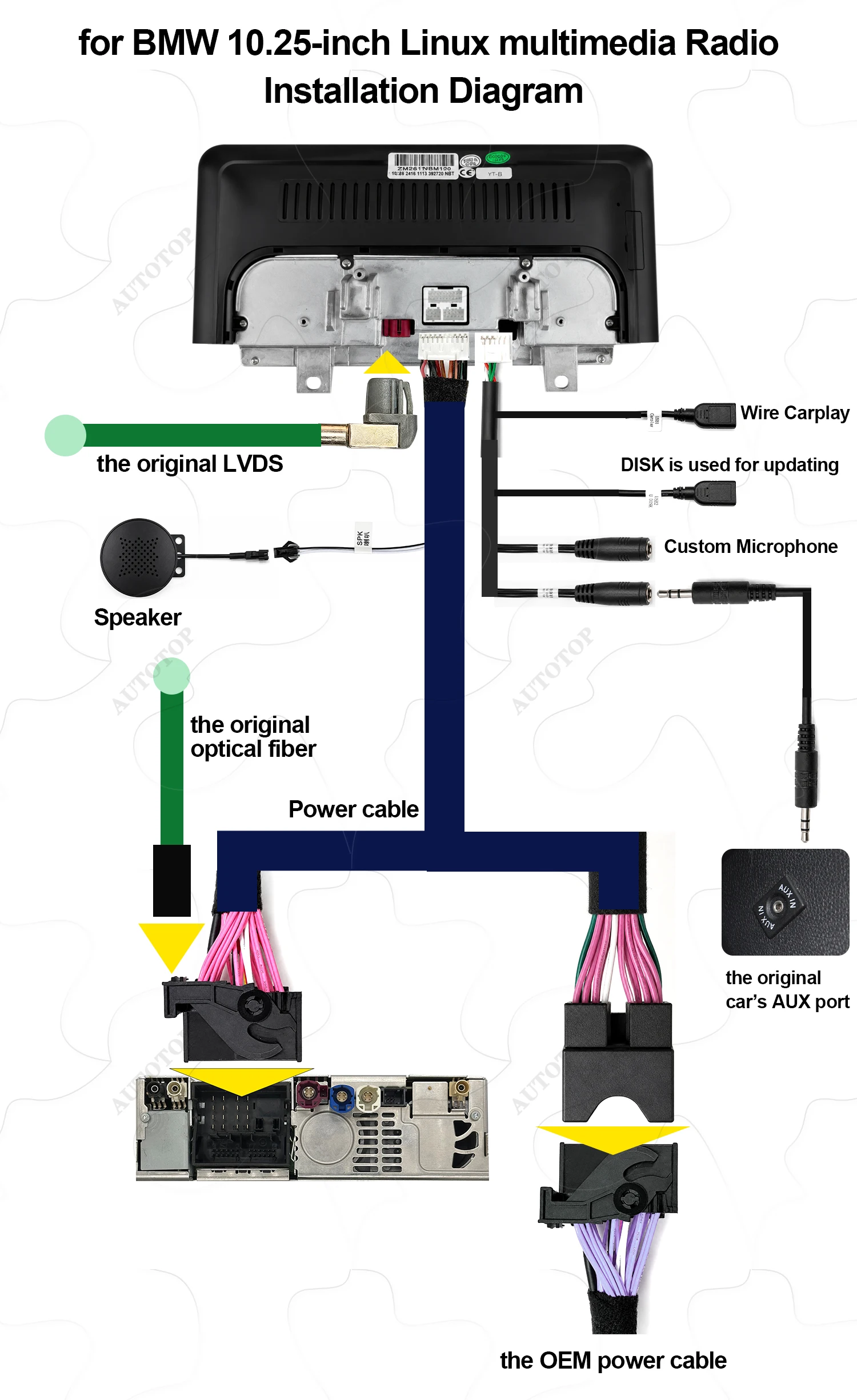
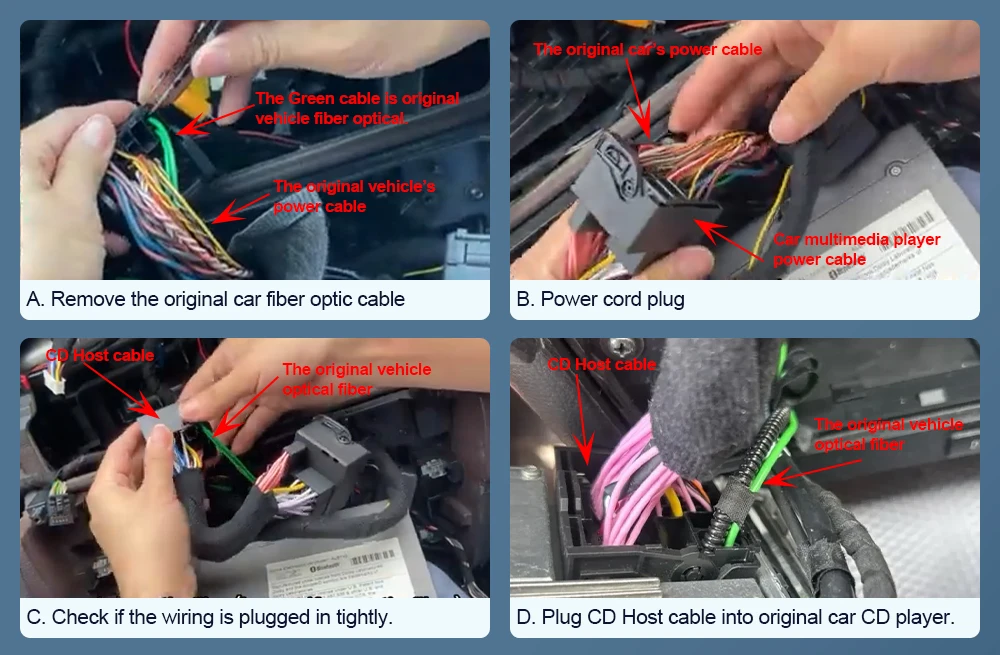
Step 1: Connect the Vehicle Wiring Harness to the Multimedia Screen
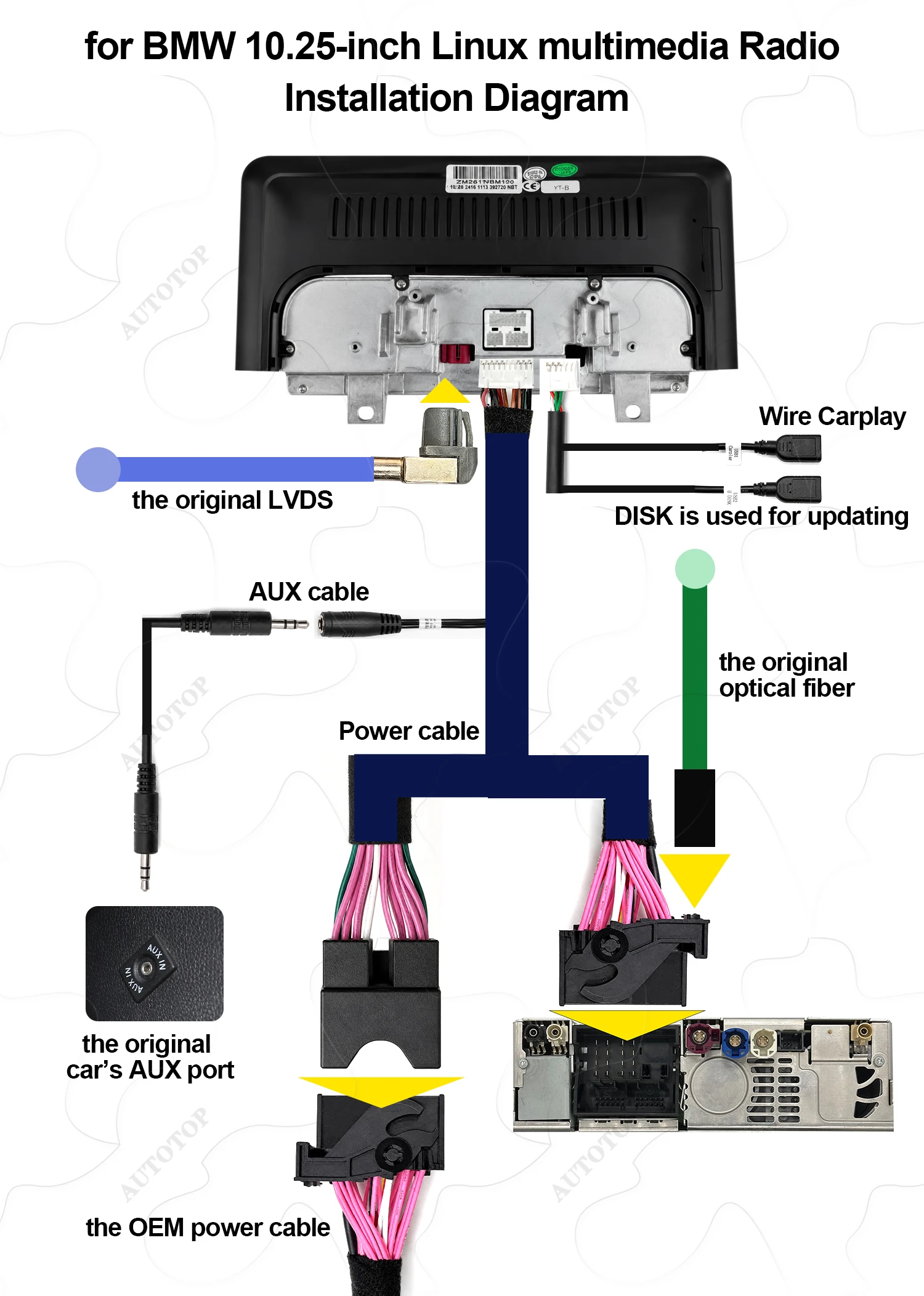
1. LVDS and Fiber Optic Cables
a. Connect the vehicle’s 6-pin LVDS cable and the fiber optic cable (green cable).
b. If your vehicle is not equipped with a fiber optic cable, this connection is not required.
c. These cables transmit vehicle data and audio signals.
2. USB Connections
There are two USB cables that need to be routed to the passenger side for future system updates:
CarPlay USB Port: Used for wired CarPlay connections.
DISK USB Port: Used for system firmware updates.
3. AUX cable Connections
a. You also need to leave the AUX cable accessible. If your vehicle utilizes a 6-pin LVDS CIC system, you must connect the AUX cable to obtain audio output.
b. If you wish to use the AirPlay feature, you must utilize the vehicle's original AUX audio channel, which requires connecting the AUX cable.
BMW Linux system Multimedia Screen with YouTube version
Installation Guide
The installation process consists of three main steps:
Step 1: Connect the Vehicle Wiring Harness to the Multimedia Screen
1. LVDS and Fiber Optic Cables
a. Connect the vehicle’s 6-pin LVDS cable and the fiber optic cable (green cable).
b. If your vehicle is not equipped with a fiber optic cable, this connection is not required.
c. If the original car's system interface displays a "No Signal" prompt, it indicates that you have not connected the car's original LVDS cable to the multimedia screen.
2. USB Connections
There are two USB cables that need to be routed to the passenger side for future system updates:
CarPlay USB Port: Used for wired CarPlay connections.
DISK USB Port: Used for system firmware updates.
3. AUX cable Connections
a. Mic cable: We have reserved an interface for a custom microphone.
b. Audio output cable: If your car has Bluetooth, use the built-in Bluetooth to get the best original sound from your car’s audio.
If your car does not have Bluetooth, use an AUX cable.
c. To use AirPlay, connect the AUX cable and use your car's original AUX audio.
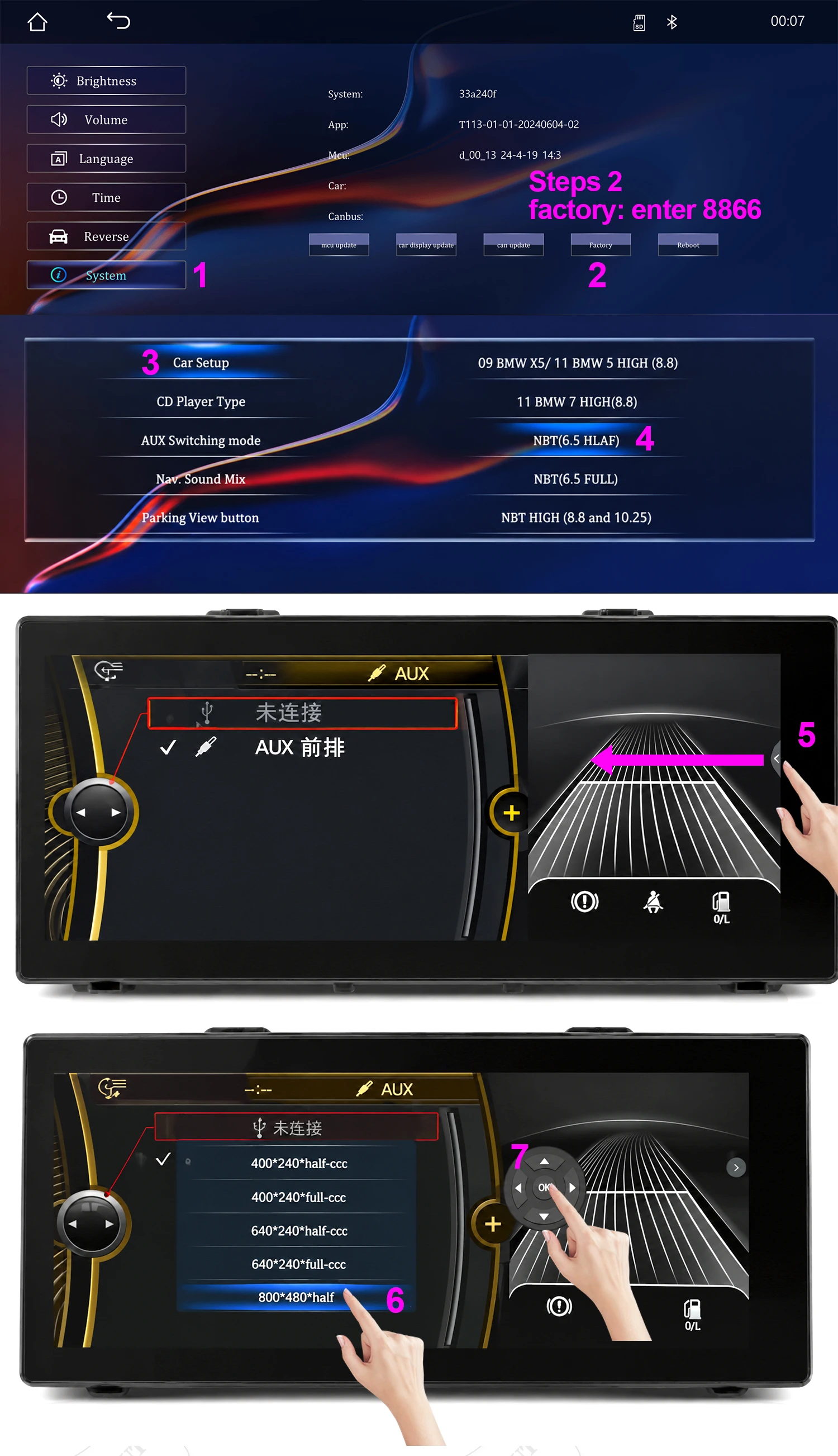
How do I set the basic parameters after installation?
I. You also need to make sure the original optic fiber cable(Green cable) is connected to our power cable,like the below photo.
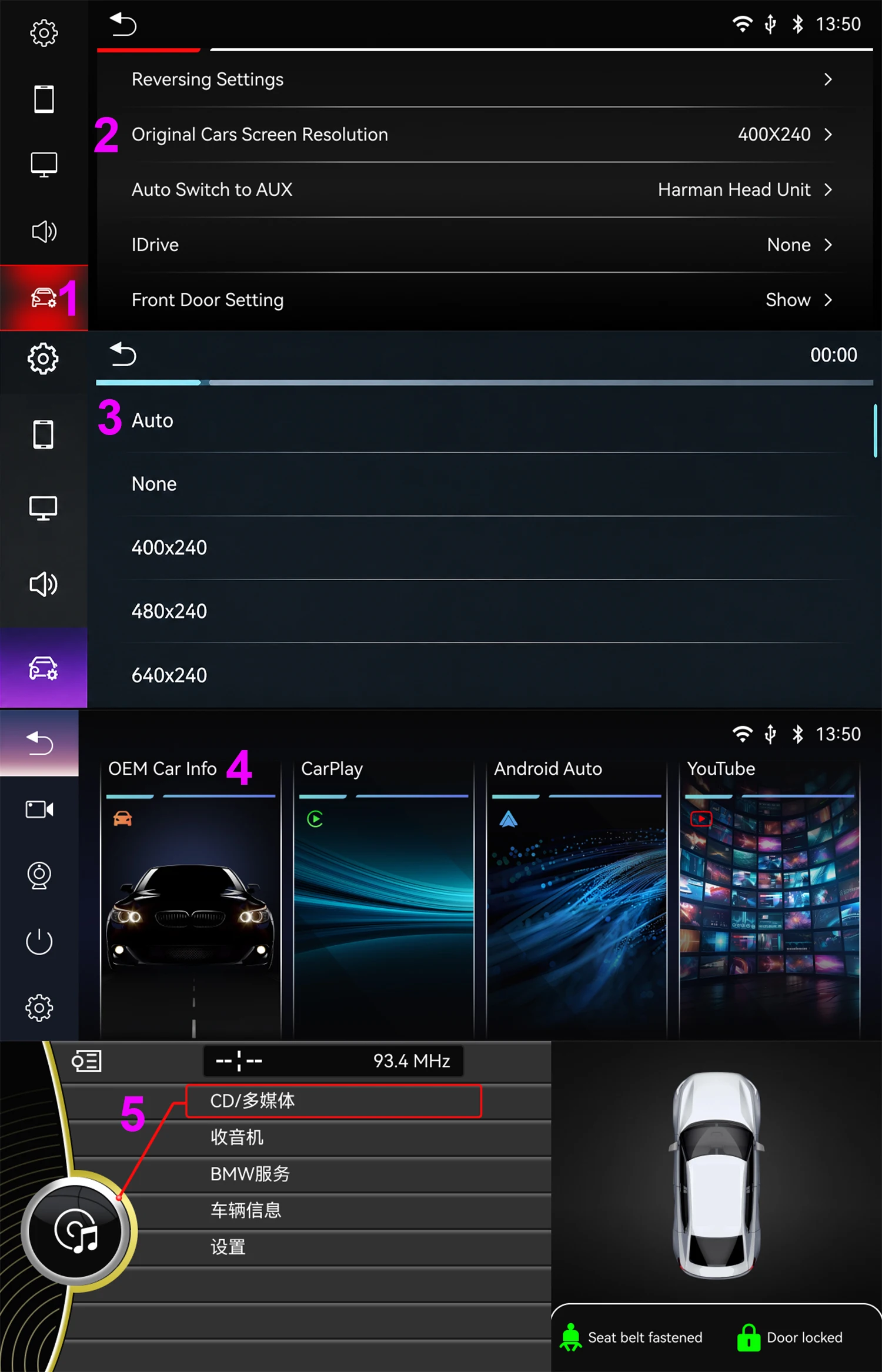
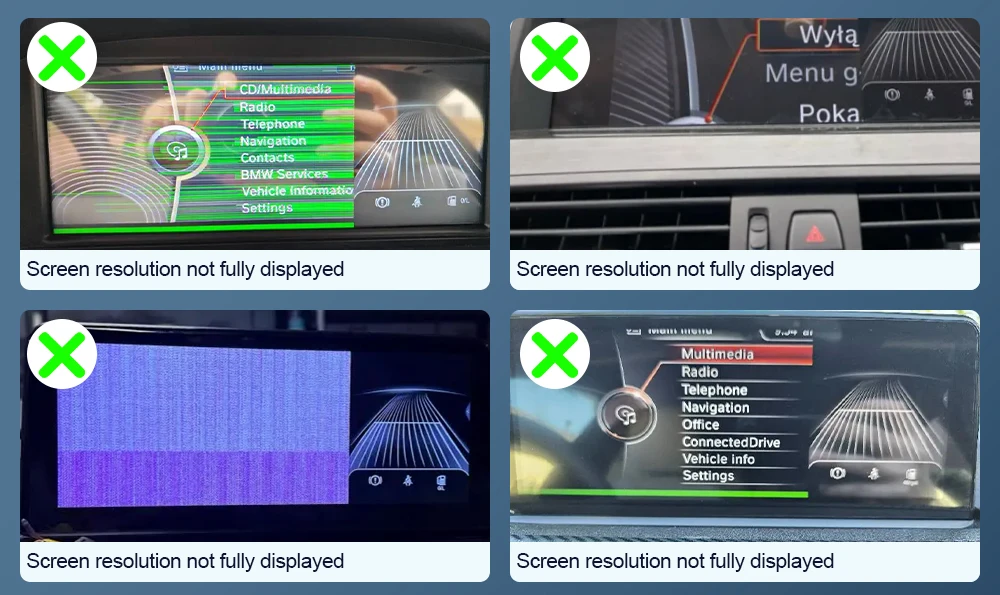
II. If the following situations occur, it's not due to screen damage; you simply need to adjust the screen resolution settings.
 III. Steps for setting screen resolution:
A. Choose the setting option.
B. Choose system – Factory
C. The factory password is 8866.
D. Select the original car's models and screen size
E. Select the correct resolution one by one,Continue until the original vehicle system menu displays correctly.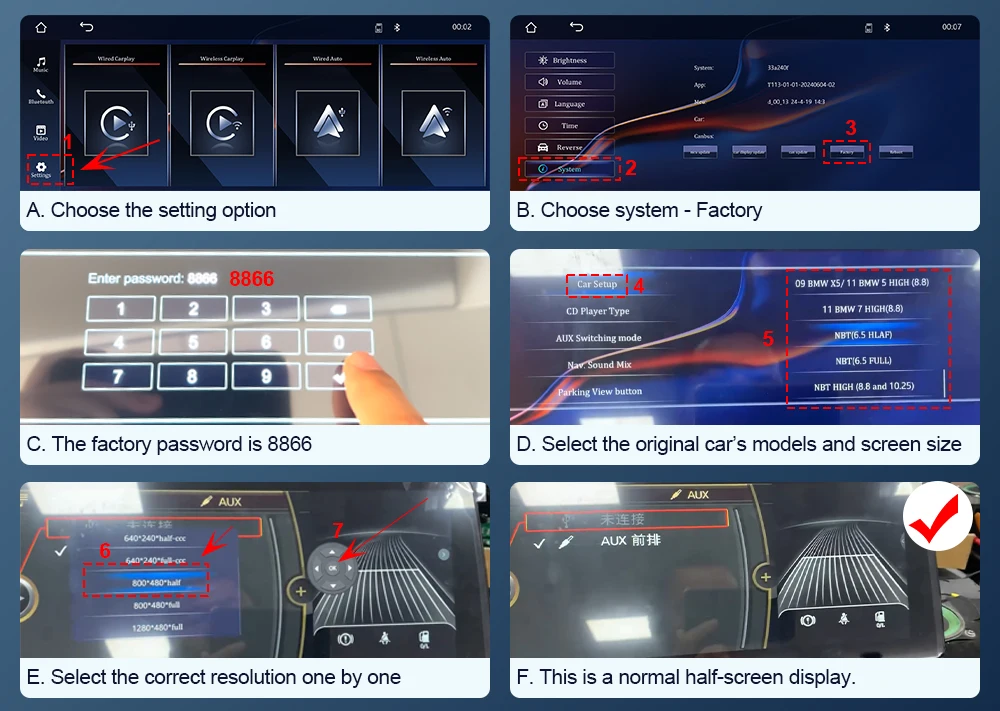 IV. Questions: In the CarPlay system, if you find there is no sound when playing music, you can first check whether you are using a Bluetooth connection.
Solution:
A. Choose the setting option.
B. Choose the system — Factory
C. Enter 8866 in the factory.
D. Find out CP/AA voice-grade channel — Car.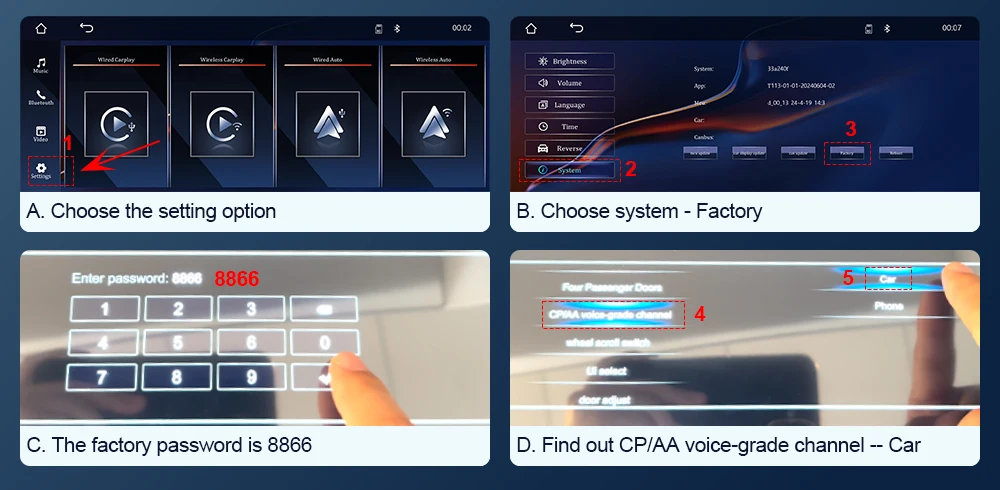 V. If you find that you have successfully connected via Bluetooth, but there is still no sound in the CarPlay system, you will need to purchase an AUX cable locally. The method for activating the AUX settings is the same for both CIC and NBT systems.
A. Connect AUX cable
B. Plug the AUX cable into the original AUX interface in the glove box.
C. Choose Multimedia.
D. Choose External devices,Activate AUX functionChoose the AUX front.
E. Finally,return carplay system,check if there is sound.
F. If there's still no sound, try connecting the AUX cable to your phone's AUX port to test whether the phone produces sound.
If you hear sound, the car's AUX port is functioning properly.
If there's no sound, the car's AUX port may be faulty and require repair.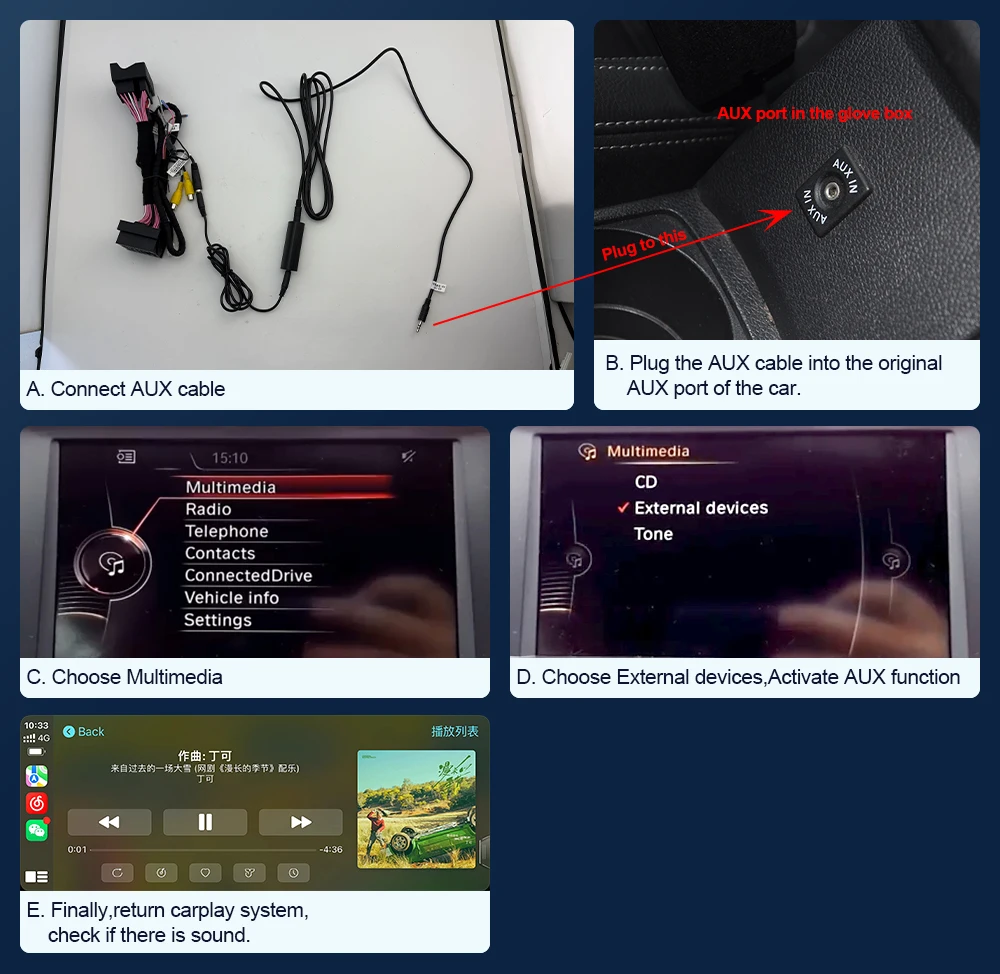

Reviews
There are no reviews yet.